
How to add subtitles to a video
Subtitles can live inside the picture or travel as a separate file. This guide covers both, the automatic route and the manual one, and how to keep every line readable and in sync.
Open a caption editor such as Vid Hub in your browser, add the video, and let it write the captions from the speech. Check every word and timing against the audio, pick a readable style, and export an MP4 with the subtitles burned into the picture. If you need a separate caption file instead, paid plans download it as .srt or .vtt.
Choose between burned-in text and a caption file
Subtitles reach the viewer in one of two forms. Burned-in subtitles, which the W3C calls open captions, are drawn into the picture, so they show wherever the video plays and nobody can switch them off. Closed subtitles travel as a separate file, such as SRT or VTT, and the viewer's player draws them and lets people turn them on or off.
The W3C names WebVTT as the most common caption format on the web and lists SRT and TTML as others. On a web page, the HTML track element loads a WebVTT file next to the video and offers it as subtitles or captions.
| Burned in (open) | Separate file (closed) | |
|---|---|---|
| Turn them off | Not possible, the text is part of the picture | Yes, in players that load caption files |
| Where they show | Everywhere the video file plays | Only in players that load the file |
| Look | Your chosen style, the same for every viewer | The player's style, which some players let viewers change |
| Change a word later | Export the video again | Edit the text file |
| More than one language | One copy of the video per language | One file per language beside the same video |
Burned-in subtitles suit short clips for social apps, videos shared in chats, and anywhere you cannot attach a file. A separate file suits a video on your own site or course, where viewers may want to turn the text off or pick a language. Our guide to burned-in vs soft subtitles covers the trade-offs in more detail.
Add subtitles automatically with Vid Hub
Typing every caption from scratch is slow, so most people start from automatic captions and then correct them. Plan for that correction pass: the W3C notes that automatic captions usually need significant editing before they meet viewers' needs. Vid Hub's caption editor runs in the browser on a computer or a phone, and these are the steps.
- Open vid-hub.com. You do not need an account to start.
- Add the video file, and the editor opens.
- Choose the spoken language from over 90, or pick Auto Detect, and the editor writes captions from the speech. The free plan captions up to 10 minutes of a video, and paid plans caption up to 20 minutes.
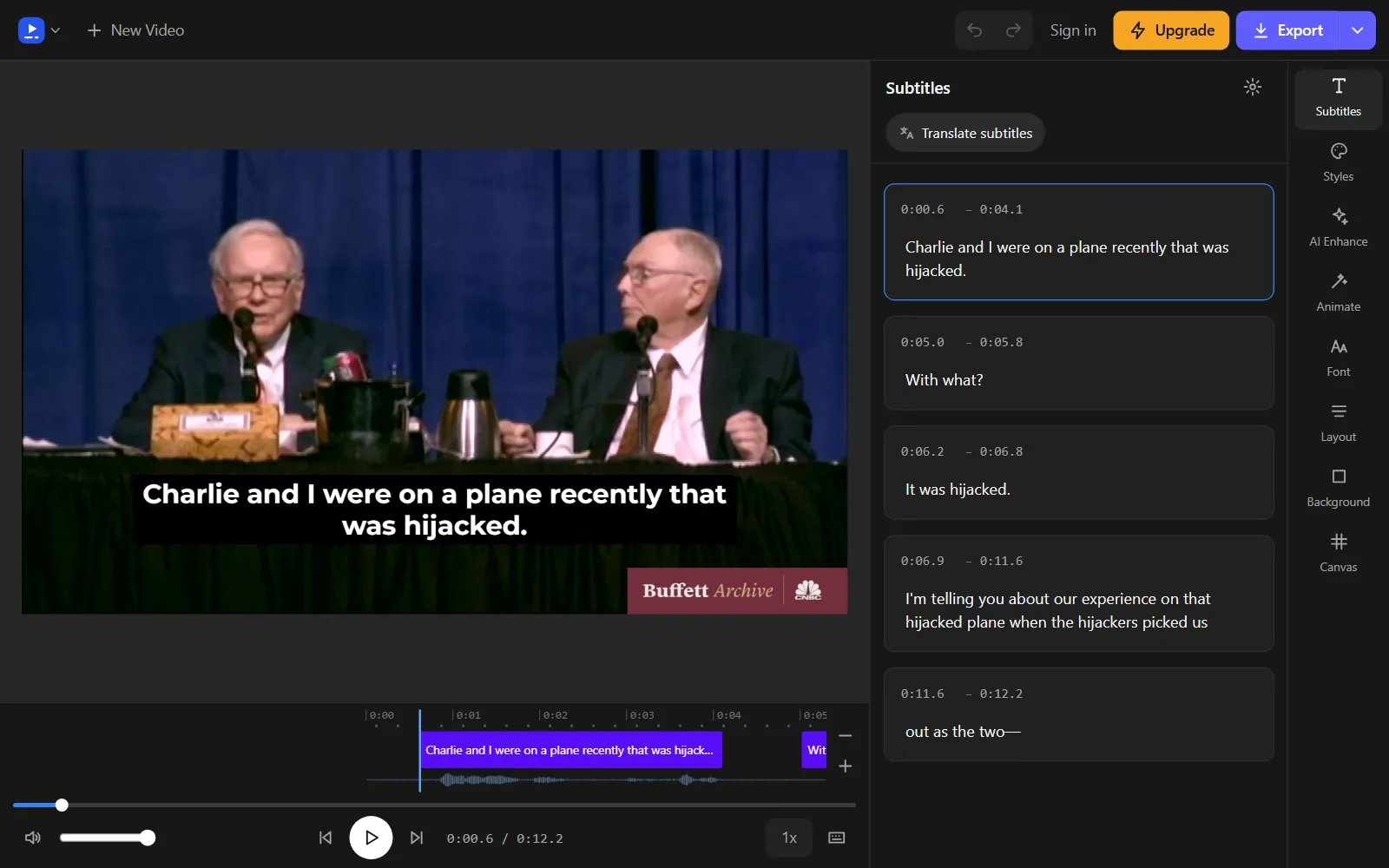
- Play the video and read every caption against the audio. Fix wrong words and adjust start and end times in the caption list (Transcript on a phone) or, on a computer, on the timeline, so each line shows while its words are spoken.
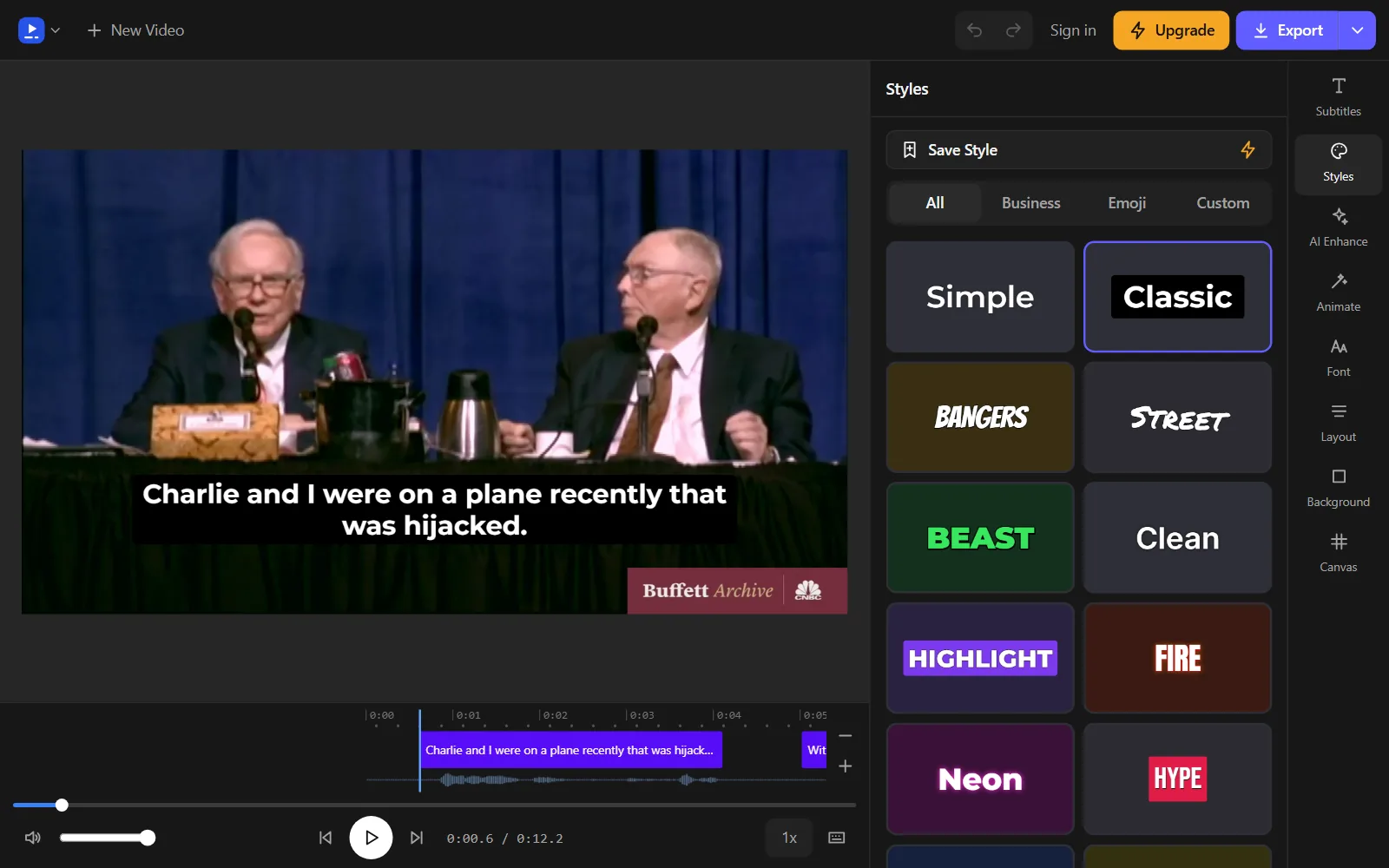
- In the Styles panel, choose one of the 28 looks, then change its font, colours or outline. You can also add one of 14 animations, such as word-by-word highlight.
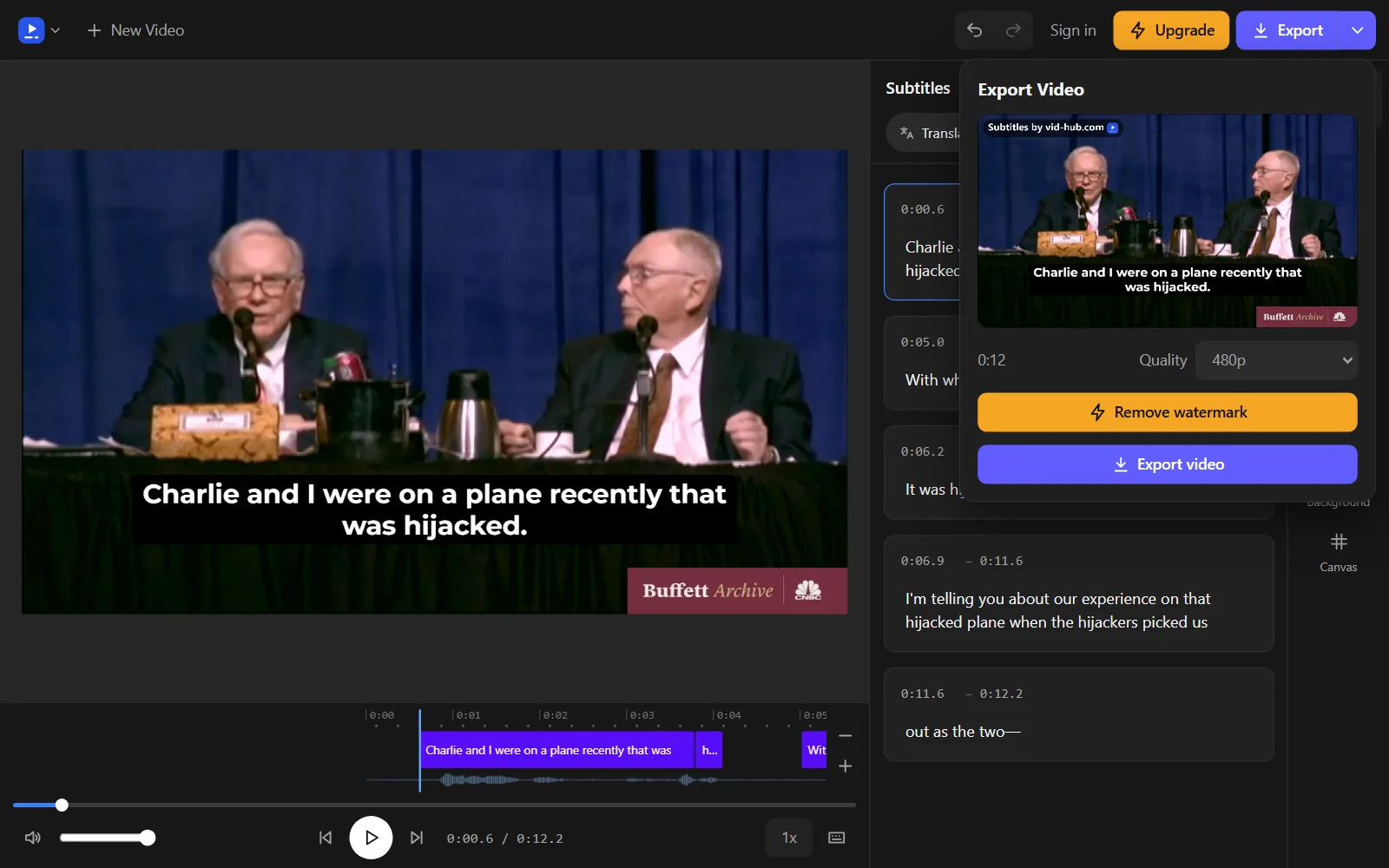
- Press Export to make an MP4 with the captions burned in. The file is made in your browser.
The export size depends on the plan. Free exports are 480p with a vid-hub.com mark, Creator exports 720p with a small mark, and Pro and Studio export 1080p with no mark. Paid plans can also download the captions as an .srt, .vtt or .txt file from the arrow beside Export on a computer, or from the "..." button on a phone, which gives you the separate-file route as well.
The auto caption generator page walks through the caption step, and the pricing page lists what each plan includes.
Add subtitles by hand
Writing subtitles yourself suits a short clip, or a video read from a script you can paste in. It takes longer, but you control every word and every line break from the start.
Type and time each caption
Play the video and pause at the start of each phrase. Type what is said, set the time the caption appears and the time it leaves, and move on to the next phrase. Keep one thought per caption, and end each caption where the speaker pauses.
Write or edit an SRT file
An SRT file is plain text, so any text editor opens it. The Library of Congress describes each subtitle in the file as a block of four parts.
- A number that counts the subtitles in order.
- A timing line: the start time, an arrow made of two hyphens and a greater-than sign, and the end time. A reading of 00:01:04,500 means 1 minute, 4 seconds and 500 milliseconds; note the comma in front of the milliseconds.
- One or more lines of subtitle text.
- A blank line that closes the block.
SRT has no fixed character encoding, so a player can misread accented letters or other scripts. Save the file as UTF-8 to keep them intact. If a web page needs WebVTT, the SRT to VTT tool converts the file, and our article on what a VTT file is explains the format.
To change an existing file without a text editor, the free subtitle editor opens SRT and VTT files and reads them in your browser.
Style subtitles so people can read them
Readable subtitles depend on four things: size, contrast, line length and position. Caption guidelines from DCMP and Netflix give concrete numbers to start from.
- Size. Pick a font size a phone viewer can take in at a glance, and check it on the smallest screen your viewers use, not only on a computer.
- Contrast. DCMP prefers white letters in a medium-weight sans serif with a drop or rim shadow, and a translucent box behind them on light backgrounds. It also prefers mixed case and keeps capitals for shouting.
- Line length. For English, the Netflix timed text style guide sets a limit of 42 characters on a line and two lines on screen, and it keeps short text to a single line. When you need two lines, break where the speaker would pause, and keep a first name with a last name and a verb with its auxiliary.
- Position. DCMP places captions on the bottom two lines and moves them when they would cover faces, mouths, names or on-screen text. The W3C also asks that captions do not hide relevant information in the picture.
In Vid Hub, start from one of the 28 ready styles, then set the font size. Use the Position X and Position Y sliders to move the captions, and Max Lines and Max Words Per Line to keep lines short. Alignment and letter casing sit beside them.
Set the canvas to the shape of the place you will post. On a computer, the choices are Original, 9:16 Portrait, 4:5 Portrait, 1:1 Square, 16:9 Landscape and 4:3 Classic; on a phone, Format offers Original, Portrait (9:16), Landscape (16:9) and Square (1:1). On a vertical video for a social app, keep the captions clear of the area the app covers with its buttons and text. The guides to subtitle formatting rules and subtitle fonts and legibility go further.
Posting to a short-video app? Our guides to TikTok captions and Instagram Reels subtitles cover what changes for each one.
Subtitles or captions: which do you need?
People use the two words loosely, but MDN's page on the HTML track element keeps them apart. Subtitles transcribe or translate the dialogue for people who hear the audio clearly but cannot follow the language. Captions also carry sound effects, music cues and who is speaking, for viewers who cannot hear the audio.
If your audience includes Deaf or hard of hearing viewers, write captions and include the sounds needed to follow the video. Our guide to subtitles vs captions explains the difference, and the article on SDH subtitles shows how to write them.
What subtitles do for your audience
Subtitles reach more people than the audio alone. The W3C's guidance on accessible media gives several reasons.
- Sound-off viewing. People watch in loud places, such as bars and airports, where they cannot hear the audio, and in quiet places, such as libraries and public transport, where they cannot play the sound.
- Accessibility. Captions give Deaf and hard of hearing viewers the speech and the sounds. WCAG makes captions for prerecorded video a Level A requirement, and open captions burned into the video are one accepted way to meet it.
- Understanding. People who read a language more easily than they hear it, such as non-native speakers and language learners, use subtitles to follow along.
- Search. The W3C counts indexing by search engines among the benefits of captions and transcripts. Burned-in subtitles are part of the picture, so when search matters, also publish the words as text, as a caption file or a transcript on the page.
Fix common subtitle problems
Subtitles out of sync
DCMP asks for captions that appear at about the same time as the speech. When all the captions are off by one fixed gap, move them together in one step with the subtitle shifter. If the gap grows as the video plays, the file was probably made for a different version of the video, so re-time it against the final cut.
Wrong words
The W3C warns that a single missed word, such as a dropped not, can turn a caption into the opposite of what was said. Go through the captions with the sound on, and look hardest at proper names, product names and figures. In Vid Hub, fix the text in the caption list.
Lines that are too long or too quick
A three-line caption, or one that leaves before it can be read, loses viewers. Split long captions at a natural pause, and in Vid Hub lower Max Words Per Line or Max Lines. Our guide to subtitle timing and reading speed gives the reading-speed numbers to aim for.
Captions covering something important
Move them. Use the Position Y slider in Vid Hub, or the line setting in a VTT file, to lift the captions off a name, a face or on-screen text.
Boxes or odd symbols instead of letters
This usually means the player read the file in the wrong encoding. Save it as UTF-8 and load it again. If Arabic or Hebrew lines show full stops or numbers at the wrong end, the RTL fixer is built for that.
Frequently asked questions
Can I subtitle a video for free?
Yes. You can write an SRT file in any text editor at no cost, and Vid Hub's free plan captions up to 10 minutes of a video and exports it at 480p with a vid-hub.com mark. The subtitle editor, subtitle shifter and SRT to VTT tools are free and read your file in the browser.
Can I caption a video on my phone?
Yes. Open vid-hub.com in your phone's browser and add the video file; the phone layout has four tools, Styles, Format, Transcript and Translate, and you change timing in Transcript because there is no timeline. Under the tools sits a strip of the caption's words, where tapping a word lets you split, merge or delete it.
Can I add subtitles to a video from a link?
Yes. A free Vid Hub account can bring in a video from an X link, and a paid plan adds links from Vimeo, TikTok and other sites. Without an account, start from a video file on your device.
Can I remove burned-in subtitles from a video?
Not with a setting, because burned-in subtitles are part of the picture and cannot be turned off. Keep the original video without subtitles, so you can export a new version if a line needs changing.
What is the difference between SRT and VTT?
Both are plain-text files of timed captions. A VTT file starts with the word WEBVTT, puts a full stop before the milliseconds, must be UTF-8 and is the format the HTML track element reads, while SRT uses a comma and has no fixed encoding. VTT can also carry settings that place each caption on the screen.
How long should a subtitle stay on screen?
DCMP sets a minimum of 40 frames, which it gives as 1 second and 10 frames, and a maximum of 6 seconds. Netflix's English guide sets a reading speed of up to 20 characters per second for adult programmes and 17 for children's programmes.
Can I add subtitles in another language?
Yes. On Vid Hub's paid plans, Translate turns your captions into over 45 languages, and each language is kept as its own caption track. The W3C notes that translated subtitles help people who do not speak the language but are not, by themselves, an accessibility feature.
Try it on your own video
Open the editor, add your video, and get captions you can edit, style and export.
Upload your videoNo account needed to start.
Sources
We read each page below on the date shown. Rules, prices and plans change, so check the page itself before you rely on it. A source we cite does not endorse Vid Hub.
- W3C Web Accessibility Initiative: Captions/SubtitlesRead 2026-11-07.
- W3C Web Accessibility Initiative: User Experiences and Benefits to OrganizationsRead 2026-11-07.
- W3C Web Accessibility Initiative: Understanding Success Criterion 1.2.2: Captions (Prerecorded)Read 2026-11-07.
- MDN: <track>: The Embed Text Track elementRead 2026-11-07.
- MDN: Web Video Text Tracks Format (WebVTT)Read 2026-11-07.
- Library of Congress: SubRip Subtitle format (SRT)Read 2026-11-07.
- DCMP: Captioning Key, TextRead 2026-11-07.
- DCMP: Captioning Key, Elements of Quality CaptioningRead 2026-11-07.
- Netflix Partner Help Center: English (USA) Timed Text Style GuideRead 2026-11-07.