
How to add captions to a TikTok video
Burn styled captions into a TikTok before you post, and learn what TikTok's ads help says about its auto captions. This guide also covers where the lines should sit and how to style them.
To add captions you control, burn them into the picture before you upload: open vid-hub.com, add the video, set the canvas to 9:16 Portrait, pick a style, move the captions clear of TikTok's buttons and text, and export an MP4 to post. TikTok's ads help also describes auto-generated captions on Spark Ads, which viewers can translate.
TikTok's auto captions, as its ads help describes them
The TikTok page this section relies on is an Ads Manager help article about Spark Ads, so everything here describes auto captions on those ads. They may work differently on an ordinary post.
On Spark Ads, viewers see auto-generated captions made from the video's audio and can translate them. A See translation link under the description translates the ad's title, description and captions, and See original switches back. TikTok lists this feature for the United States and the European Union.
Two points on that page matter if you add your own captions. TikTok does not translate text that is part of the video image. And when a Spark Ad already carries burned-in captions that match the auto-generated ones, TikTok does not show the duplicate set.
For an ordinary post, check TikTok's own help for how auto captions work and how to turn them on or off. App menus change between versions, so this guide does not list those steps.
Caption a TikTok in Vid Hub before you post
Burned-in captions are drawn into the video frames, so they look the same in the TikTok feed, in a saved copy and in a repost. You choose the words, the look and the position before anyone sees the video.
- Open vid-hub.com in the browser on your computer or phone and add the video file. The caption editor opens, and you do not need an account to start.
- Choose the spoken language from over 90, or leave Auto Detect on. Vid Hub writes the captions from the speech.
- Read every caption in the caption list (Transcript on a phone). Fix names, slang and misheard words, and correct the timing in the list or, on a computer, on the timeline.
- Set the canvas to 9:16 Portrait; on a phone, open Format and choose Portrait (9:16). TikTok's ad specs name vertical 9:16 as the recommended shape.
- Open Styles and choose one of the 28 ready styles. Change the font, colours, outline or background box if you want your own look.
- Move the Position Y slider until the captions sit clear of the area TikTok covers with its buttons, your account name and the post text. The placement section below explains where that is.
- Export the MP4, play it on your phone, and upload it to TikTok as a new post.
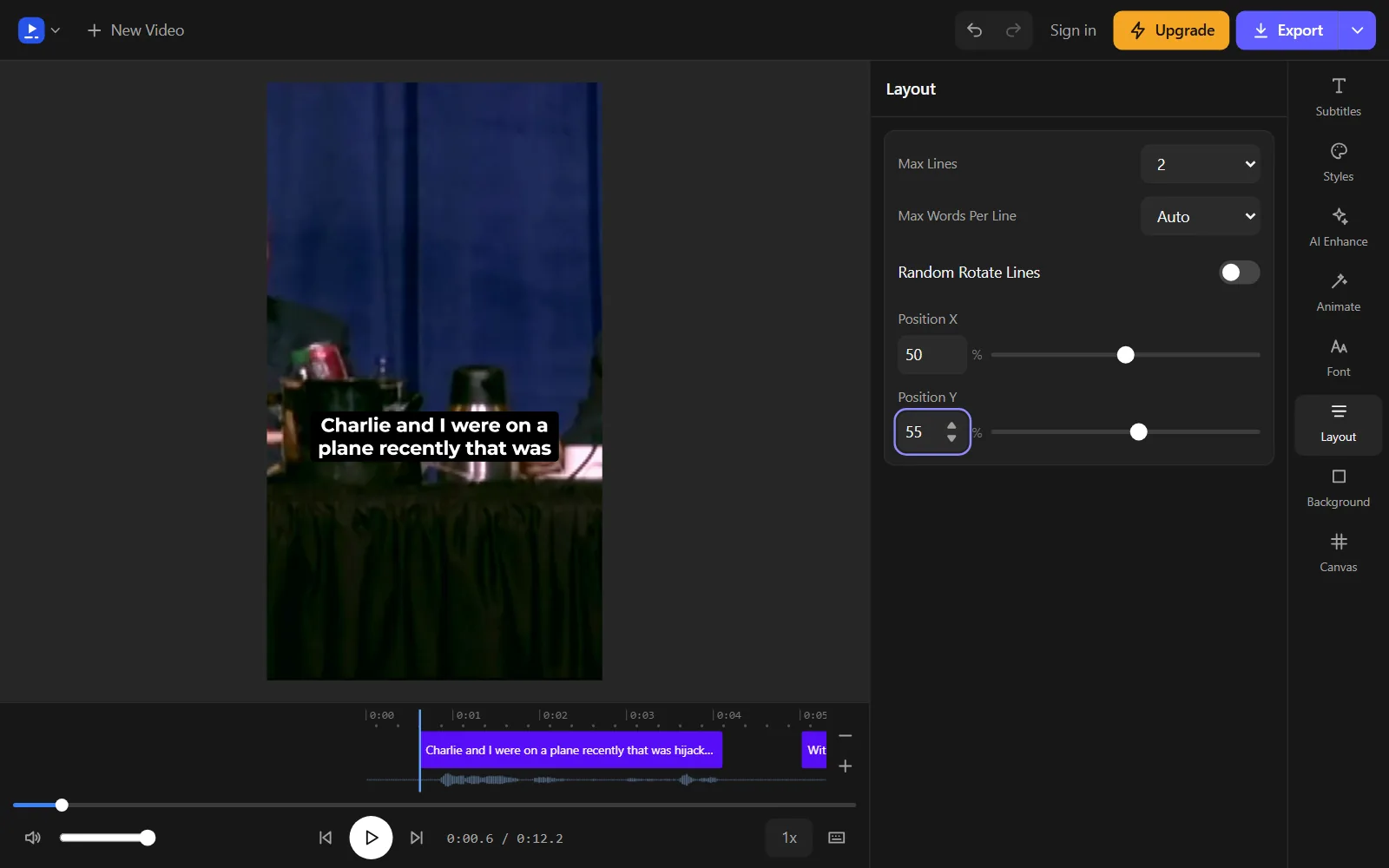
With the canvas at 9:16 Portrait, the frame in the editor has the same tall shape as the video on a phone. That makes it easier to judge how much room is left once TikTok adds its own text.
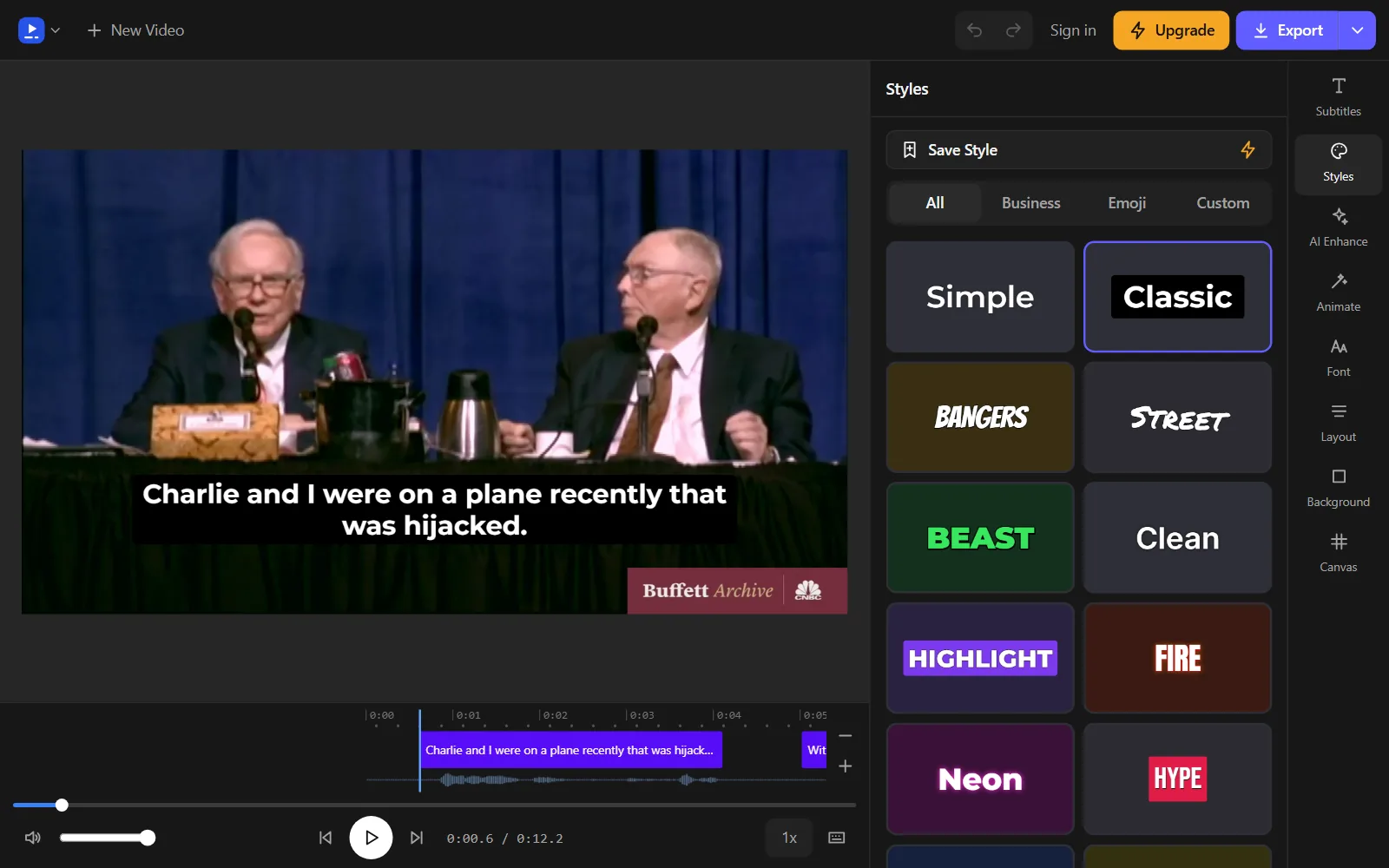
Each ready style sets the font, colours and outline together, so you can try several on the same caption and keep the one that reads clearly over your footage. Saving your own style is part of the paid plans.
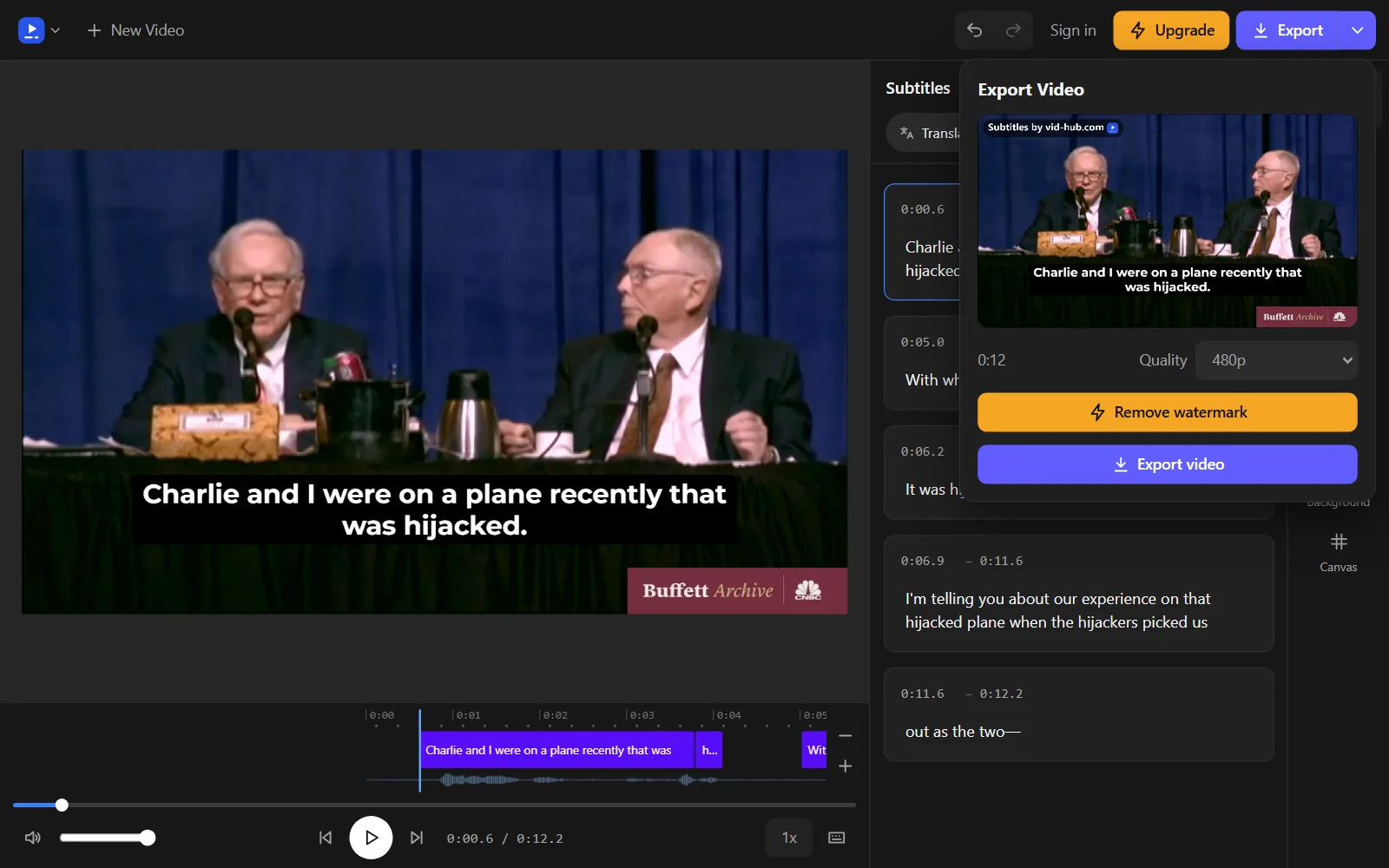
Export builds the MP4 in your browser. The free export is 480p with a vid-hub.com mark, the Creator plan gives 720p with a small mark, and Pro and Studio give 1080p with no mark.
Auto captions or burned-in captions: which to choose
Both ways put words on the screen, but they behave differently once the video leaves your hands. The table compares auto captions as TikTok's ads help describes them on Spark Ads with captions you burn in.
| Auto captions on Spark Ads | Captions burned in with Vid Hub | |
|---|---|---|
| Made from | The video's audio, by TikTok | The speech, by Vid Hub, then checked by you |
| Look | TikTok's own display | 28 styles, 14 animations, fonts, colours, outline and background box |
| Translation for viewers | See translation, in the US and EU | Not translated by TikTok; paid plans translate into over 45 languages |
| Part of the video file | No, TikTok shows them over the video | Yes, so they show in any player and in reposts |
For an ordinary post, check TikTok's own help to see what its auto captions do there. Choose burned-in captions when the text is part of the style, when the same file goes to other apps, or when every word must be right before anyone watches.
Our guide to burned-in vs soft subtitles covers the trade-off in more depth.
Where captions sit on a vertical TikTok
In the feed, TikTok lays buttons, your account name and the post text over the video. Its ad specs say text and logos belong inside the clear part of the frame, and anything outside it might be covered or cropped.
The size of that clear part is not fixed. TikTok says it depends on the shape of the video, the length of the post text and any interactive add-ons, and a longer post text leaves a smaller clear area. In the ad specs, post text runs to four lines before See more hides the rest.
TikTok gives the exact areas as downloadable template files, not as numbers. For TopView ads, its preview tool marks bands at the upper and lower edges, and text inside those bands is rejected. TikTok also warns that the templates may not match every device.
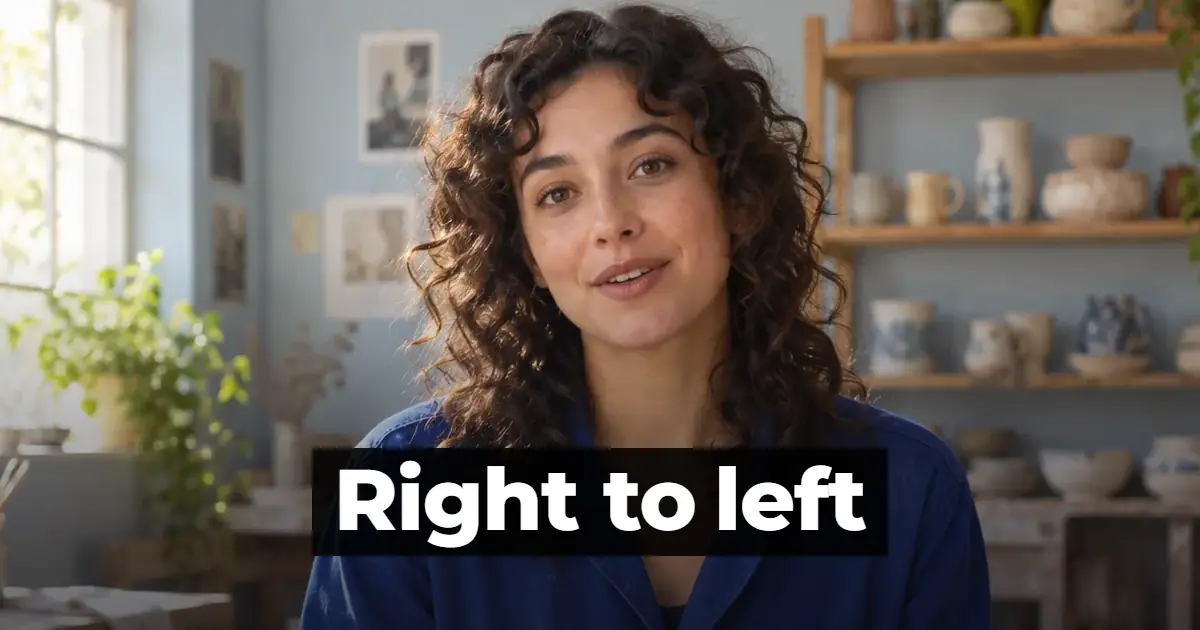
For Arabic, TikTok ships separate right-to-left versions of these files. If your viewers use the app in Arabic, check the video in that layout as well.
In practice, keep captions away from the upper and lower edges and the sides, a little below the middle of the frame. Hold them to one or two lines, and play the export on a phone before you post.
Caption style tips for short videos
- Keep lines short. Set Max Lines to 1 or 2 and Max Words Per Line to about 3 to 5, so each caption reads at a glance. Our guide to subtitle timing and reading speed explains how long a line needs on screen.
- Use word-by-word highlight for fast speech. It is one of 14 animations, and it marks each word as it is spoken, so viewers keep their place. See animated captions for the rest.
- Build in contrast. TikTok's ad specs note that its own text and icons are white and warn against white backgrounds. Give your captions an outline or a background box so they stay readable over bright shots.
- Test the size on a real phone. Hold the phone at arm's length while the export plays; if a line is hard to make out, raise the font size and check that two lines still fit inside the clear area.
- Match the casing to the voice. Use the letter casing setting for capitals on short, punchy lines and normal case for longer speech.
- Go easy on Auto Emoji. One emoji can mark a punchline, but a line full of them is harder to read.
Common problems and how to fix them
- Captions hidden under the post text. Shorten the post text, since TikTok says longer text shrinks the clear area, then raise the captions with Position Y.
- Two sets of captions. If TikTok's auto captions show on the same post as your burned-in ones, the words stack. TikTok drops the duplicate on Spark Ads with matching burned-in captions, but on an ordinary post, check the video on a phone after it goes live.
- Wrong words. Captions written from speech can miss names, brand terms and slang. Fix them in the caption list before you export, because burned-in text cannot change after export.
- Captions out of sync. Correct the start and end of each caption in the caption list or, on a computer, on the timeline. For an SRT or VTT file you already have, the free subtitle shifter moves the timing.
- Too much text on screen. Lower Max Words Per Line or Max Lines so each caption shows fewer words at once. On a phone, you can also tap a word in the strip under the video and choose Split.
- A long video. You get captions for up to 10 minutes of a video free, and paid plans caption up to 20 minutes of a video.
Frequently asked questions
Are burned-in captions the same as closed captions?
No. The W3C describes closed captions as a layer viewers can show or hide, while open captions are always on. Burned-in captions are open captions, part of the picture itself.
Can I add captions to a TikTok I already posted?
Yes. Add the video file, or on a paid plan paste its TikTok link and Vid Hub brings the video in. The captioned MP4 then goes up as a new post.
Can I caption a TikTok in Arabic or Hebrew?
Yes. Hebrew and Arabic captions run right to left, and English words and numbers inside them keep their own order because the editor follows the Unicode bidirectional algorithm. Every one of the 28 styles draws Hebrew and Arabic letters in a font made for those scripts, and Arabic letters stay joined.
Can I translate my TikTok captions into another language?
On paid plans, Translate turns your captions into any of over 45 languages, each kept as its own caption track. Posting one video per language keeps each frame uncluttered.
Can I download the captions as an SRT file?
On paid plans, download .srt, .vtt or .txt files from the arrow beside Export on a computer, or from the "..." button on a phone. If you already have an SRT, the free subtitle editor and SRT to VTT tools work on it in your browser.
What size should a TikTok video be?
TikTok's ad specs recommend vertical 9:16 video of at least 540 by 960 pixels. The free 480p export is below that, so export at 720p or 1080p for an ad.
Do I need to install an app to caption a TikTok?
No. The caption editor runs in the browser at vid-hub.com on a computer or a phone, and the MP4 is made in the browser too.
Try it on your own video
Open the editor, add your video, and get captions you can edit, style and export.
Upload your videoNo account needed to start.
Sources
We read each page below on the date shown. Rules, prices and plans change, so check the page itself before you rely on it. A source we cite does not endorse Vid Hub.
- TikTok Ads Manager: About Captions and Translations for Spark AdsRead 2026-11-07.
- TikTok Ads Manager: TikTok reservation in-feed ad specifications (including Reach & Frequency)Read 2026-11-07.
- TikTok Ads Manager: TopView ad specificationsRead 2026-11-07.
- W3C Web Accessibility Initiative: Captions/SubtitlesRead 2026-11-07.
- Unicode: UAX #9, Unicode Bidirectional AlgorithmRead 2026-11-07.