
Instagram Reels subtitles
Upload your Reel, get subtitles from the speech, and style them to read on a small screen. Export an MP4 and post it in the Instagram app.
Clip: CNBC Warren Buffett Archive, captioned in the editor. The Hebrew words are our own translation. No endorsement is implied.
Subtitles that read with the sound off
Vid Hub writes subtitles for a Reel from its speech and burns them into the picture, in the 9:16 shape of a Reel or the 1:1 shape of a feed post. A video file you upload stays in your browser while you work.
Why creators use Vid Hub
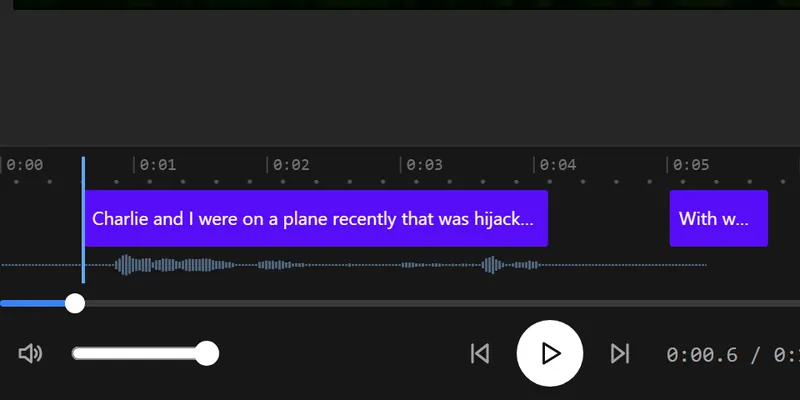
Every caption under your control
Fix any word, split or merge a caption, and move its start and end. Changes show on the video as you type.
Your video stays with you
The editor works in your browser. Only the sound is sent, for speech recognition, and our server deletes it when that request ends.
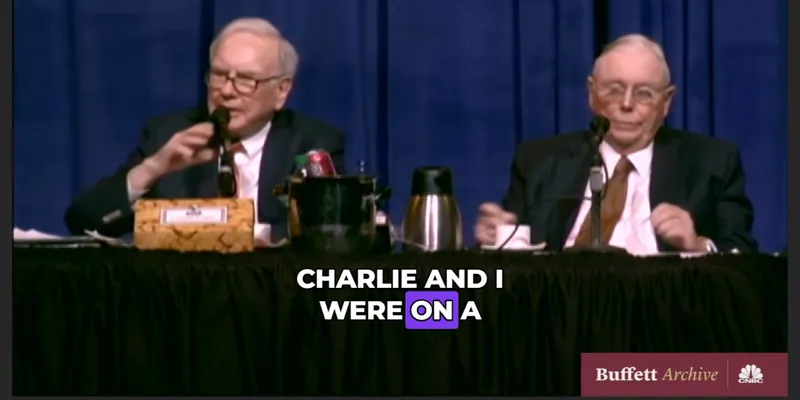
Captions that move
Pick one of 28 styles or one of 14 animations, such as Pop, Wave or word-by-word Karaoke, and every caption follows it.
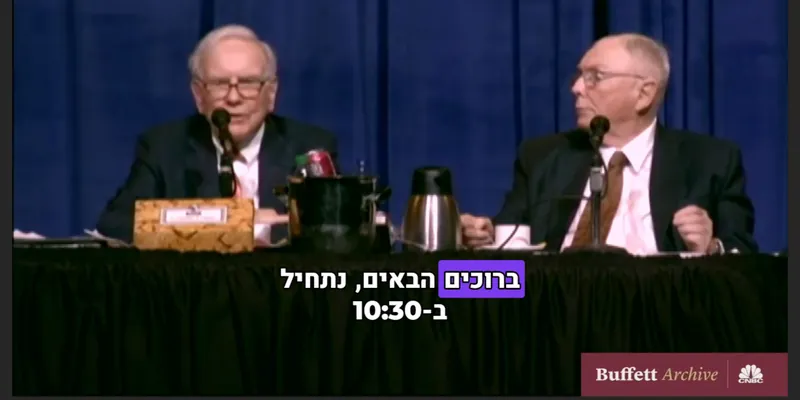
Arabic and Hebrew read right
Right-to-left lines keep their order in the preview and in the export, and the word animations start from the right.
Translate on a paid plan
Paid plans translate the captions into other languages, each kept as its own caption track, and save .srt, .vtt and .txt files.
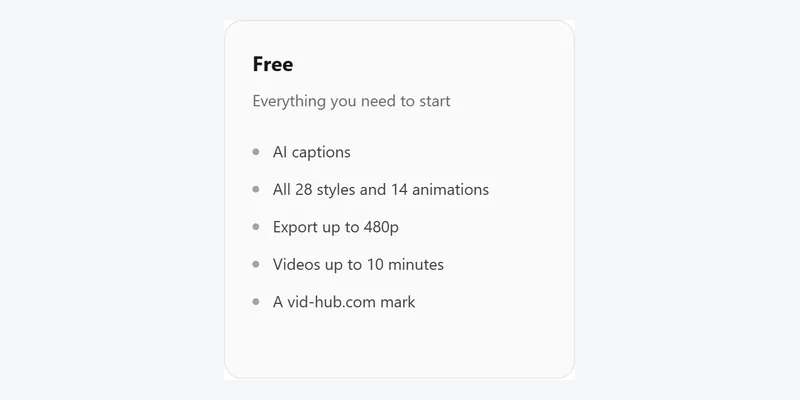
Free to start
No account and no card. Videos up to 10 minutes export free at 480p with a vid-hub.com mark.
Pictures that show a video use the editor's demo clip, an excerpt from the CNBC Warren Buffett Archive. No endorsement is implied.
Features
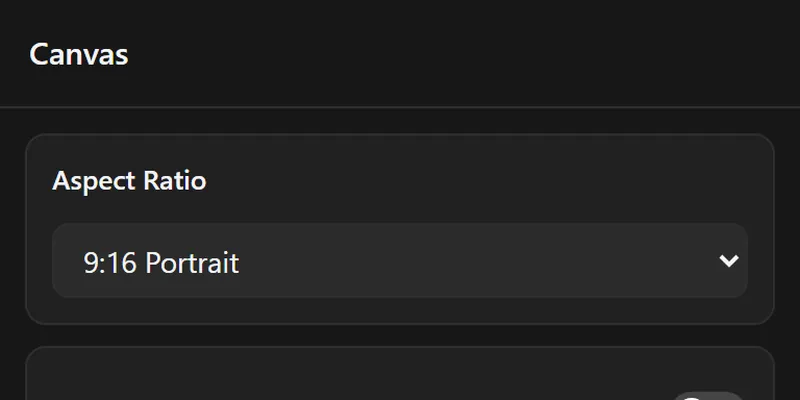
Reel and feed shapes
9:16 Portrait for a Reel or a Story, 1:1 Square for the feed. On a computer there is 4:5 Portrait too.
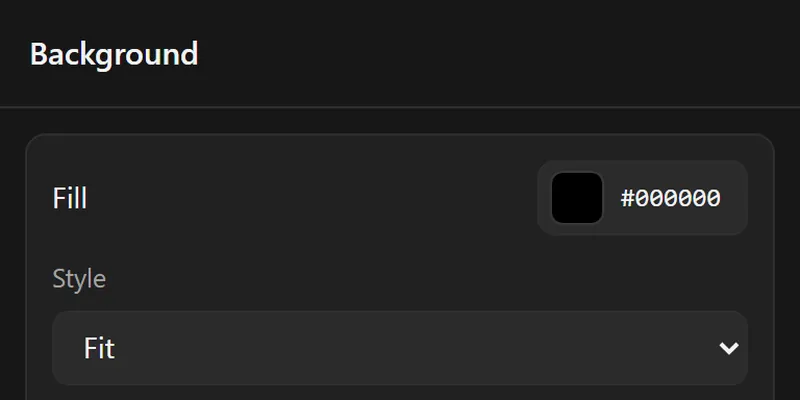
A box behind the words
A box of your colour keeps the subtitles readable over a busy picture.
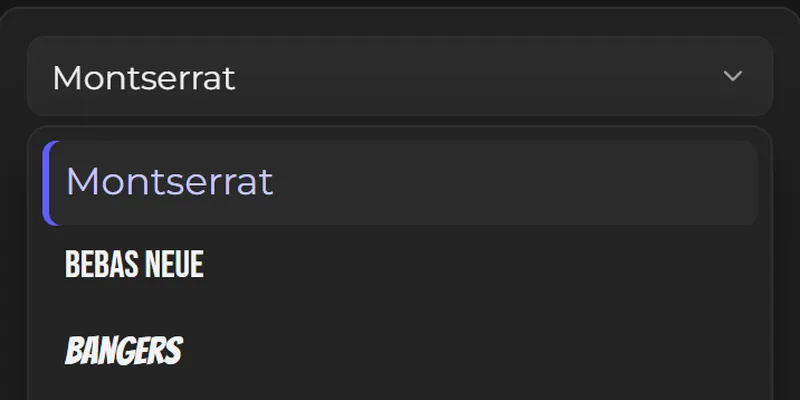
Fonts that match your page
Over 50 fonts, from clean sans to display faces, in the size and colour you choose.
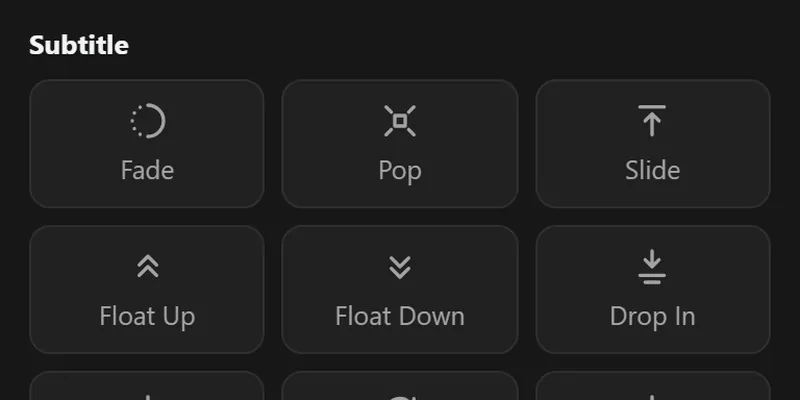
Entrances that catch the eye
Fade, Pop, Slide and more bring each subtitle onto the screen.
Made for creators, shops and coaches
Creators
Hold the viewer through the first seconds, when the sound is often still off.
Online shops
Name the product and the offer in words that stay on the screen.
Coaches and teachers
Turn a talking clip into a lesson people can follow anywhere.
How it works
- Step 1
Upload your Reel
Choose the video file from your phone or computer. The file stays in your browser.
- Step 2
Get the subtitles
Pick the spoken language or Auto Detect, and the editor writes timed subtitles from the speech.
- Step 3
Style the subtitles
Choose a style, a font and a box, and set the 9:16 shape if your video is not vertical yet.
- Step 4
Export and post
Save the MP4, then post it in the Instagram app as a Reel, a Story or a feed video.
Free and paid
| Feature | Free | Paid plans |
|---|---|---|
| The 9:16 and 1:1 shapes | ||
| Edit the words and times | ||
| 28 styles and 14 animations | ||
| Captions written from the speech | Up to 10 minutes a video | Up to 20 minutes a video |
| Export length | Up to 10 minutes | The whole video |
| Export quality | 480p | 720p on Creator, 1080p on Pro and Studio |
| Watermark | A vid-hub.com mark | A small mark on Creator, none on Pro and Studio |
| .srt, .vtt and .txt files | ||
| Caption translation | ||
| Saved styles | ||
| Links from TikTok, Vimeo and more | X links, signed in |
Frequently asked questions
How do I add subtitles to an Instagram Reel?
Open the editor and upload the video. The editor writes subtitles from the speech. Pick a style, check the words and press Export. Then post the MP4 in the Instagram app.
Is it free?
Yes, with no account. The editor writes subtitles for up to 10 minutes of each video, and a free export is 480p with a vid-hub.com mark. Paid plans export at 720p or 1080p, and Pro and Studio add no mark.
Which shape should I use?
9:16 Portrait fills the screen of a Reel or a Story. 1:1 Square suits a feed post, and on a computer the editor has 4:5 Portrait too. Original keeps the shape of your video.
Can I paste an Instagram link?
Upload the video file: save the Reel to your phone or computer first. Links work for X, and for Vimeo and TikTok on a paid plan.
Where should the subtitles sit?
Keep them clear of the text and buttons that the Instagram app draws over a Reel. Move the subtitles up in Layout (on a phone: Styles, then Customise), then check the result in the app.
Does it work on a phone?
Yes. The editor opens in your phone's browser and works best there with short clips. If an export does not start on your phone, use Chrome or Edge on a computer.