
How to add subtitles in DaVinci Resolve
DaVinci Resolve has its own subtitle tracks on the edit page. This guide covers typing captions, importing a caption file, styling, exporting them burned in or as a file, and fixing common faults.
In DaVinci Resolve, subtitles live on a subtitle track above the video tracks on the edit page, where you can type them, import an SRT, TTML or XML file, and move and trim each one like a clip. Style them in the Inspector, then render them into the video or export them as a separate SRT, VTT or TTML file.
What DaVinci Resolve offers for subtitles
Blackmagic Design's pages for DaVinci Resolve 21 list subtitles and closed captioning among the tools on the edit page. Subtitles get their own tracks above the video tracks, and you move and trim them like any other clip.
According to those pages, the tools cover four jobs: making subtitles from scratch, importing timed text files, styling a track in the Inspector, and delivering the result rendered into the picture or as a separate file. Blackmagic also lists a subtitle generator among its title tools, made for timed subtitles.
The product pages describe what the tools do, not every menu path, and command names can move between versions. Keep the manual for your version at hand; Blackmagic publishes its instruction manuals in its Support Center.
Add a subtitle track and type captions by hand
Typing subtitles yourself takes longer but gives you control over every word and every line break. Finish the picture edit first, because cuts and moved clips can leave a line sitting over the wrong speech.
- On the edit page, give the timeline a subtitle track. Resolve places it over the video tracks.
- Move the playhead to where the first line of speech starts.
- Add a subtitle to the subtitle track at the playhead and type the words of that line. Blackmagic's pages do not give the menu path, so follow the manual for your version.
- Drag the start and end of the subtitle on the timeline so it appears with the speech and leaves when the speaker stops.
- Move to the next line and repeat until the timeline is covered.
- Play the timeline from the start with the sound on, and fix any line that comes in late or stays too long.
Keep each subtitle to one thought and break lines where a reader would pause. Our guides to subtitle formatting rules and subtitle timing and reading speed cover line length and how long a line should stay up.
Import an SRT or other subtitle file
If the captions already exist, import them rather than retyping. Blackmagic lists timed text TTML, SRT and XML among the subtitle formats DaVinci Resolve imports.
- Open the file in a plain text editor first. Check that every caption has its number, its start and end times and its text, and that accented or non-Latin letters display correctly.
- Import the file into your project. Blackmagic notes that subtitle entries can be relinked in the media pool.
- Place the subtitles on a subtitle track and play the opening lines to check that they match the speech.
- If all the lines are off by one fixed gap, select every subtitle and move them as a block. If only a few lines are off, fix those one at a time.
An imported file is only as good as the timing it was made for. If it was written for a different cut of the video, expect to retime the lines around every change.
Automatic subtitles from speech: what Blackmagic says
Blackmagic's edit page lists transcribing clips for subtitles or for text based editing among its advanced editing tools. That line names the job, but not the steps, the languages or the edition it runs in.
DaVinci Resolve comes as the free DaVinci Resolve and the paid DaVinci Resolve Studio. Blackmagic's overview describes Studio as everything in the free version plus the DaVinci AI Neural Engine, and lists text based editing among the Studio extras.
Before you plan a project around speech to text, confirm the feature is in your own copy and check the manual for your version. Whatever writes the first draft, read every line against the audio before you trust it, and listen again wherever music or crosstalk sits under the speech.
Change the look in the Inspector
Blackmagic says the Inspector holds the subtitle track styles, with settings for font, colour, size, position and more. Set the look for the track first, then check a few lines spread across the timeline.
- Choose a plain, open font, and judge the size on a small preview as well as on your monitor.
- Use white or pale text with a dark outline or a dark background, so the words read over bright and busy shots.
- Keep subtitles low in the frame, and raise them only where they would cover a name card or other text in the picture.
- Keep one look for the whole video, so viewers always know where to look.
Blackmagic lists basic title generators and more than 100 Fusion title tools apart from the subtitle generator. Keep captions on the subtitle track, so they stay together and can be exported as a file later. Our guide to subtitle fonts and legibility covers size and contrast in more depth.
Subtitles in more than one language
Blackmagic says you can switch between subtitle tracks for different languages, with many captions on each track. Give each language its own track and name it clearly, so you always know which one is showing.
A translated line is often longer than the original. It may need splitting into two subtitles, or shorter wording, to stay readable in the same time.
Decide early which language, if any, goes into the picture and which go out as files. That choice shapes how you render, which the next section covers.
Export subtitles burned in or as a file
Blackmagic gives two ways to deliver subtitles: render them into the final video, or export them as separate TTML, SRT or VTT files. Rendering happens on the deliver page, which Blackmagic describes as the place with control over all encoding options and formats.
- Burned in: the words are part of every frame, so they show wherever the video plays, with nothing for the viewer to switch on. They cannot be turned off or corrected without a new render.
- SRT or VTT file: the words stay separate from the picture, so viewers can turn them on or off and you can fix a typo without rendering again. Use this when the player or platform takes a caption file.
- TTML file: timed text for clients and workflows that ask for it by name.
Our guide to burned-in versus soft subtitles weighs the two in more detail. For the web format, see what a VTT file is.
When subtitles go wrong
Lines drift after you change the edit
Subtitles placed before the cut is final can end up over the wrong speech once you trim or move clips. Lock the picture before you caption, and if you must recut, play every line near the change again.
The whole file is out of step by one fixed gap
A steady gap points to an offset in the file, not bad timing on each line. Move all the subtitles together by the gap you measure on the first line, then check lines in the middle and at the end.
The gap grows through the video
When lines slip further out of step as the video plays, the file was likely timed against a different cut or frame rate. Shifting the whole file will not fix that, so retime against this exact edit.
Letters show as boxes or odd symbols
Boxes usually mean the font has no letters for that language, so pick one in the Inspector that covers the script. Odd symbols in place of accented letters usually mean the file was not saved as UTF-8; save it again as UTF-8 and import it once more.
Burned-in subtitles are missing from the render
Resolve can render subtitles into the picture or export them as a file, and a file export leaves the picture clean. Check which of the two your render used before you render again.
When a browser caption editor fits
Resolve suits a video you are already editing there. If you want captions written from the speech with animated styles, or right-to-left captions in Hebrew or Arabic, a browser editor can do that step.
Vid Hub is one option. Open vid-hub.com on a computer or a phone and add your rendered video; the editor opens, and no account is needed to start.
- Pick the spoken language from over 90, or leave Auto Detect on. Vid Hub makes captions for up to 10 minutes of a video free, and paid plans caption up to 20 minutes of a video.
- Fix the text and timing in the caption list or, on a computer, on the timeline.
- In the Styles panel, try a few of the 28 ready styles on your footage, and add one of the 14 animations, such as word-by-word highlight, if you want movement.
- Export the video; the MP4 then carries the captions in every frame. On a paid plan you can instead download an .srt, from the arrow beside Export on a computer or the "..." button on a phone, and import it into Resolve as above.
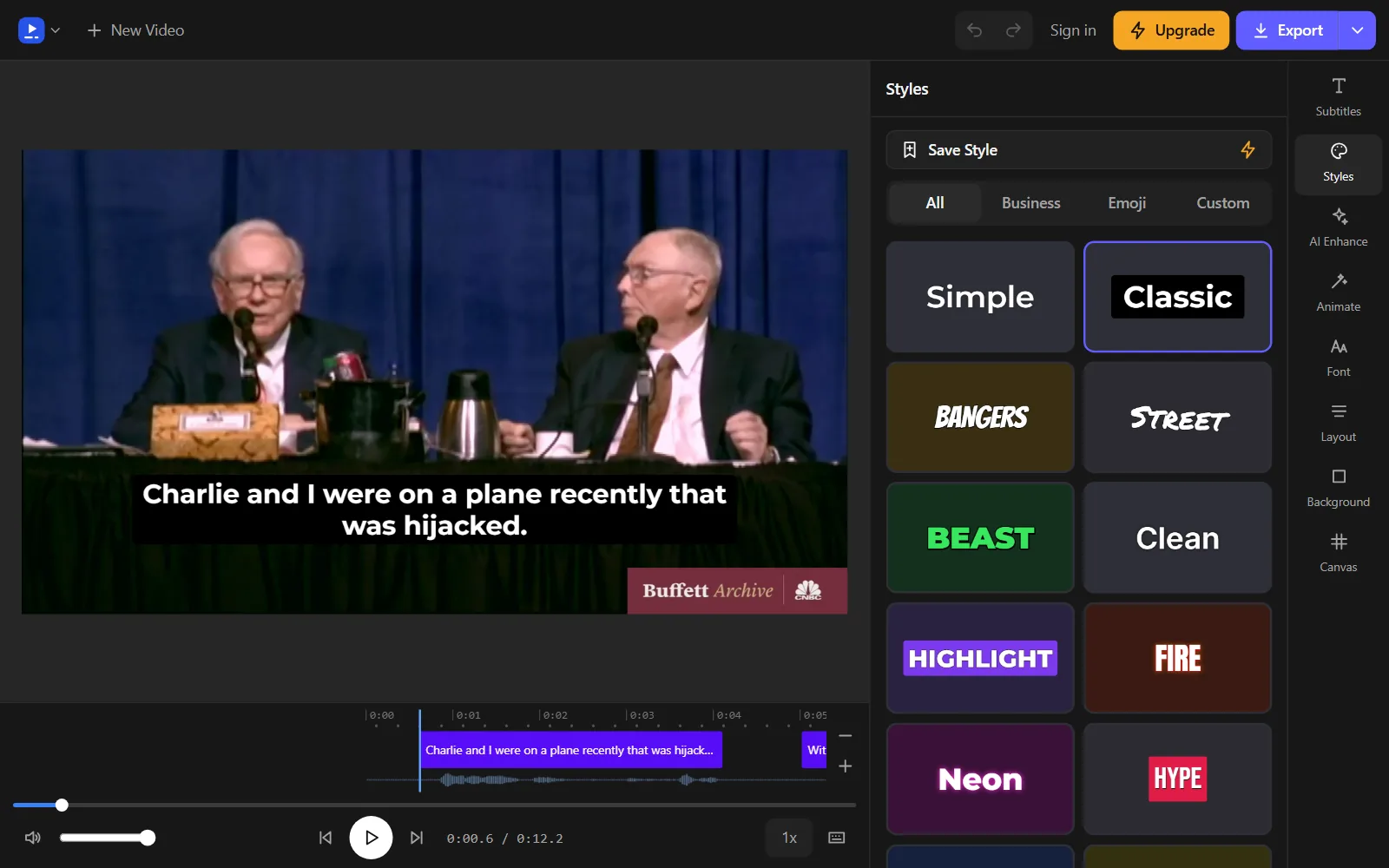
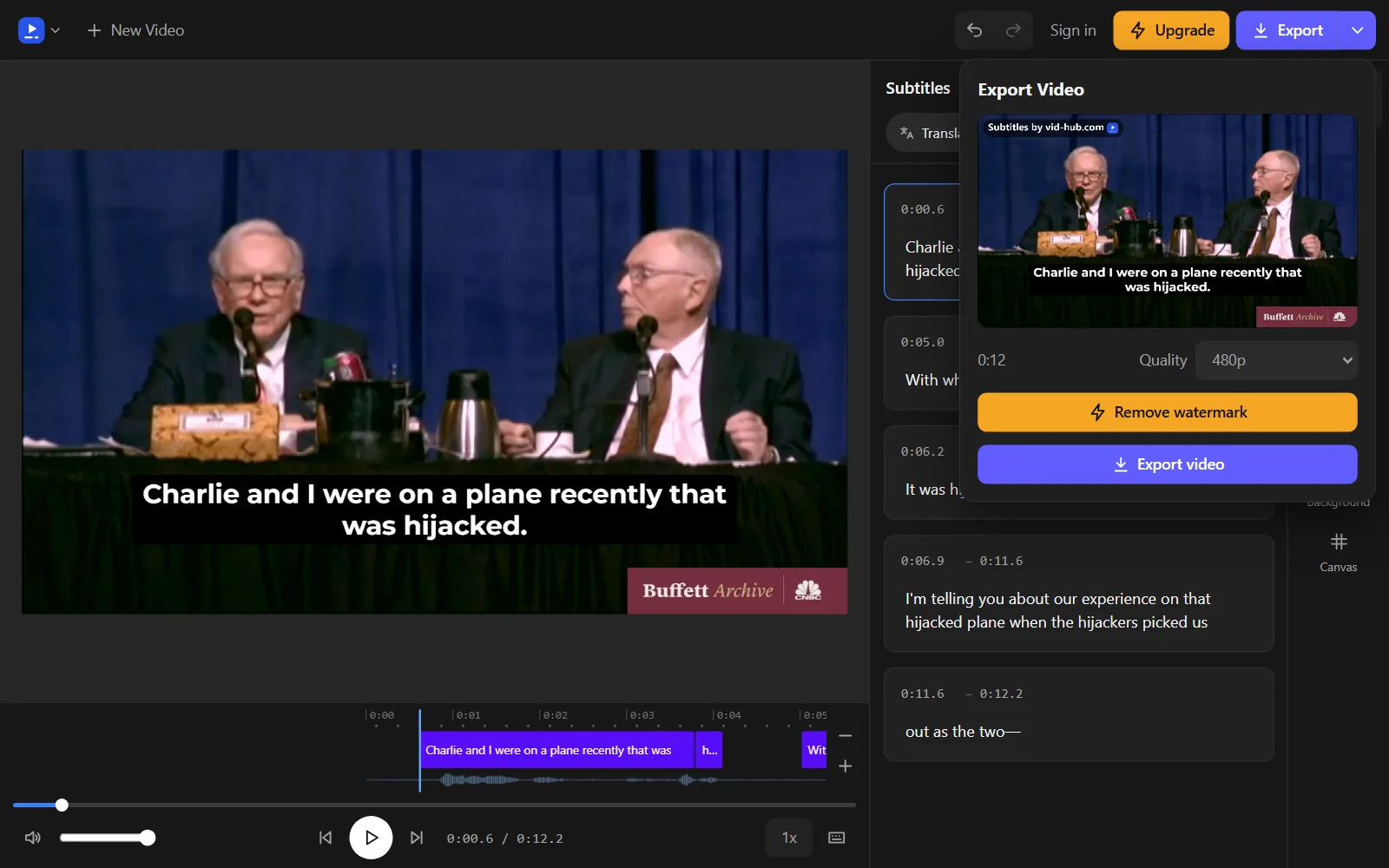
The free export is 480p with a vid-hub.com mark. The Creator plan gives 720p with a small mark, and the Pro and Studio plans give 1080p with no mark.
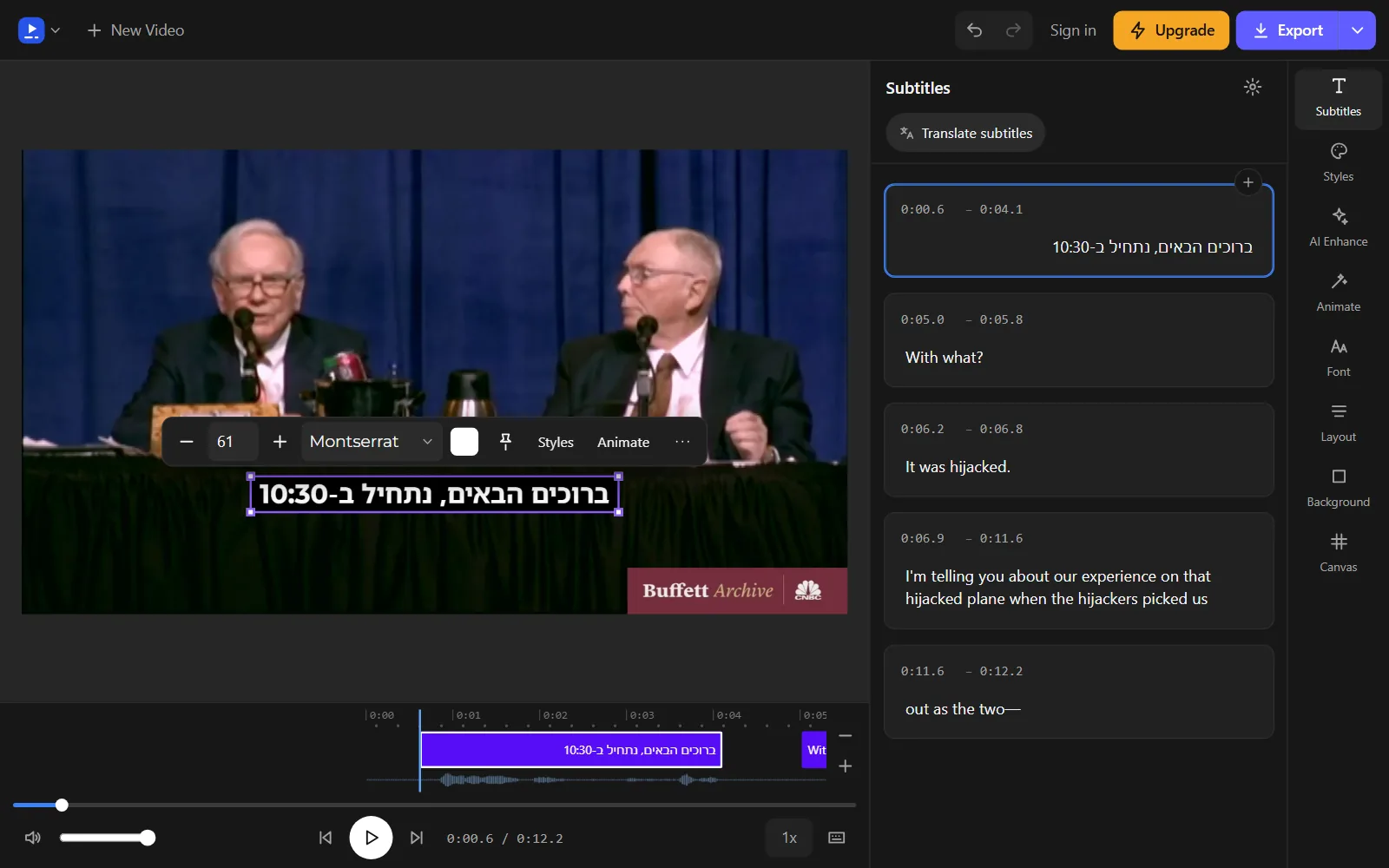
Hebrew and Arabic captions are drawn right to left, and every one of the 28 styles draws Hebrew and Arabic letters in a font made for those scripts. For a subtitle file where full stops, numbers or English words show at the wrong end, the free RTL fixer repairs it in your browser.
Frequently asked questions
Do subtitles need the paid Studio version of Resolve?
Blackmagic's edit page describes the subtitle tools without marking them as a Studio feature. Install the free edition and try a subtitle track on a short test timeline before you commit a project to it.
What resolution can the free DaVinci Resolve render?
Blackmagic lists the free version as working up to Ultra HD, 3840 x 2160, at up to 60 frames per second. DaVinci Resolve Studio goes up to 32K at up to 120 frames per second.
Does DaVinci Resolve read subtitles embedded in a video file?
Yes for MXF and IMF media: Blackmagic says Resolve can bring in the subtitle data those files carry. For other files, save the subtitles as SRT from the tool that made them and import that file.
Should I burn in subtitles for social video?
Burn them in when the video will play in feeds or apps where you cannot attach a caption file, so the words show for everyone. Keep a separate SRT as well, so you can fix a line or reuse the text later.
How long should a subtitle stay on screen?
Long enough to read the whole line without rushing, and not past the moment the speaker moves on. When a sentence is too long to read in that time, split it across two subtitles rather than shrinking the text.
Why do my subtitles look small on a phone?
A size that looks right on a large monitor shrinks with the whole frame on a small screen. Raise the size in the track style, then play a render on a phone before you deliver.
Try it on your own video
Open the editor, add your video, and get captions you can edit, style and export.
Upload your videoNo account needed to start.

Sources
We read each page below on the date shown. Rules, prices and plans change, so check the page itself before you rely on it. A source we cite does not endorse Vid Hub.
- Blackmagic Design: DaVinci Resolve 21 EditRead 2026-11-07.
- Blackmagic Design: DaVinci Resolve 21Read 2026-11-07.
- Blackmagic Design: DaVinci Resolve StudioRead 2026-11-07.
- Blackmagic Design: DaVinci Resolve and Fusion SupportRead 2026-11-07.