
How to add auto captions in CapCut
CapCut writes captions from speech in its phone, desktop and web apps. This guide follows CapCut's own help pages: where the button is, how to correct and style captions, and how to export.
Open your project in CapCut, go to Captions (Text on some versions), choose Auto Captions, pick the spoken language and click Generate. Then fix wrong words in Edit captions, style the lines, and export the video, or use Caption Export to save an SRT or TXT file.
Where auto captions are in each CapCut app
CapCut writes captions from speech in three apps: CapCut Online in the browser, CapCut Desktop for Windows and macOS, and the mobile app for iOS and Android. Its help pages from January to March 2026 say the feature works in all three, and one of them also calls it Recognise Subtitles.
The pages do not agree on the exact path. Some put Auto Captions under Captions and others under Text, and one desktop page names the last button Recognize instead of Generate. Your app version decides which label you see, so check both places.
| CapCut Online | CapCut Desktop | Mobile app | |
|---|---|---|---|
| Start from | Captions in the left panel, or Text | Captions in the left toolbar, or Text | Captions in the bottom menu, or Text |
| Then | Auto Captions, the language, Generate | Auto Captions, the audio source and language, Generate | Auto Captions, the language, Generate |
| Open the caption editor | Click a caption block, then Edit captions in the right panel | Double-click the block, or right-click it and choose Edit Captions | Tap the caption clip, then Edit captions |
How to generate auto captions
- Open your project and put the video on the timeline. Check that its audio is clear and not muted, because CapCut cannot make captions when the sound is missing or very quiet.
- Go to Captions, or Text on some versions, and choose Auto Captions.
- Pick the spoken language. Desktop also asks for the audio source, and the mobile app may offer a caption template.
- Click or tap Generate, and wait while CapCut processes the speech.
- Play the video with sound and read every caption before you style anything.
CapCut's help says the feature relies on speech recognition and cloud processing. Keep a steady internet connection while it runs, and give it a clean voice track to work from.
Fix wrong words and split long captions
CapCut's help names background noise, accents, fast speech and low audio quality as the usual reasons for wrong captions. Open the caption editor as the table shows, then click or tap a line and type the fix. CapCut saves the change as you go.
- Split a long caption at a natural pause. Move the playhead there and use the scissors icon above the timeline. On the web the shortcut is B, on desktop it is Ctrl+B or Cmd+B, and on a phone you can long-press and choose Split.
- If most lines are wrong, delete all the captions, mute music and sound effects so only the voice is left, and run Auto Captions again.
- To redo one part only, note that CapCut says neither the desktop nor the phone app re-runs recognition on a selection. On a phone, delete the bad caption block, mute the other audio and add auto captions again. On desktop, export the problem audio, caption it in a new project and copy the fixed lines back.
CapCut notes that fixes go more smoothly on short segments, and short lines are easier to read too. Our guide to subtitle timing and reading speed explains how long a line needs on screen.
Edit many captions at once
Captions made by Auto Captions can be edited in a batch in all three apps. In the caption editor, click or tap Select, mark the lines you want, then choose Edit or Style.
Take care with Edit. CapCut's page says it puts the same text into every selected line, so use it for a repeated phrase, not for a list of different typos. Style sets the font, size, colour, background or animation of the selected lines only.
Text you typed by hand is not part of this batch workflow, so you edit it one piece at a time. Some desktop versions also offer Find & Replace for a fix that runs through the whole video.
Style the captions
CapCut groups caption styling with its other text tools. Its pages list fonts, size, colour, position, animation and spacing, along with preset styles, text animations and effects such as glow.
- On desktop, use the Style tab. To change many captions at once, CapCut's batch editing help points to the Style button.
- In the batch editor, Style changes only the lines you selected, which helps when one speaker needs a different colour.
- Start with legibility: a clear font, colours that stand out from the footage, and a check on a real phone screen before you post.
Keep each caption to one or two short lines so it does not cover the picture. Our guide to subtitle formatting rules covers how to lay out caption lines.
What CapCut's pages say about free use
CapCut's caption feature pages call the tool free, say no credit card is needed to start, and say speech can be turned into text at no charge. The help pages add some conditions on what stays free.
- CapCut says a watermark-free export depends on the features you use and on the app version.
- Templates can add a small CapCut watermark at the end, and some versions add a closing clip with the CapCut logo, which you can delete from the end of the timeline.
- Some premium templates, effects and stock items add a watermark in the free version.
- Items with a diamond icon belong to paid plans: a blue diamond marks the Standard plan and a purple diamond marks Pro.
For a clean free export, CapCut suggests building the video in the standard editor rather than from a template, and swapping premium elements for free ones. Check the end of the timeline before every export.
Export the video or a caption file
Burned-in captions are part of the video you export. Click Export in the upper right corner of the editor.
- On the web, choose the resolution, quality and file format, then download the video or share it.
- On desktop, set the title, resolution and codec, keep the video export option ticked, and click Export again.
To save the captions as a separate file, CapCut's troubleshooting page says to choose Caption Export instead of Video Export on desktop, or to clear the video option on mobile, and to pick SRT or TXT. Only captions made by Auto Captions export this way; text you typed yourself does not.
CapCut's feature page says SRT export works on desktop and online. If an export from the web keeps failing, the help page suggests exporting TXT and converting it to SRT. Our guide to burned-in vs soft subtitles explains when each kind fits.
Another route: burn styled captions in Vid Hub
You can also make the captions in Vid Hub and post the finished MP4, or bring it into CapCut for the rest of the edit. Vid Hub is a caption editor that runs in the browser at vid-hub.com, on a computer or a phone, and no account is needed to start.
- Open vid-hub.com and add the video file. The editor opens.
- Choose the spoken language from over 90, or leave Auto Detect on. Captions cover up to 10 minutes of a video free and up to 20 minutes on paid plans.
- Correct each caption's text and timing in the caption list or, on a computer, on the timeline.
- Try the 28 ready styles and the 14 animations, word-by-word highlight among them. For a vertical video, set the canvas to 9:16 Portrait on a computer, or Portrait under Format on a phone.
- Export, and the captions are drawn into the video file. The free export is 480p with a vid-hub.com mark, Creator gives 720p with a small mark, and Pro and Studio give 1080p with no mark.
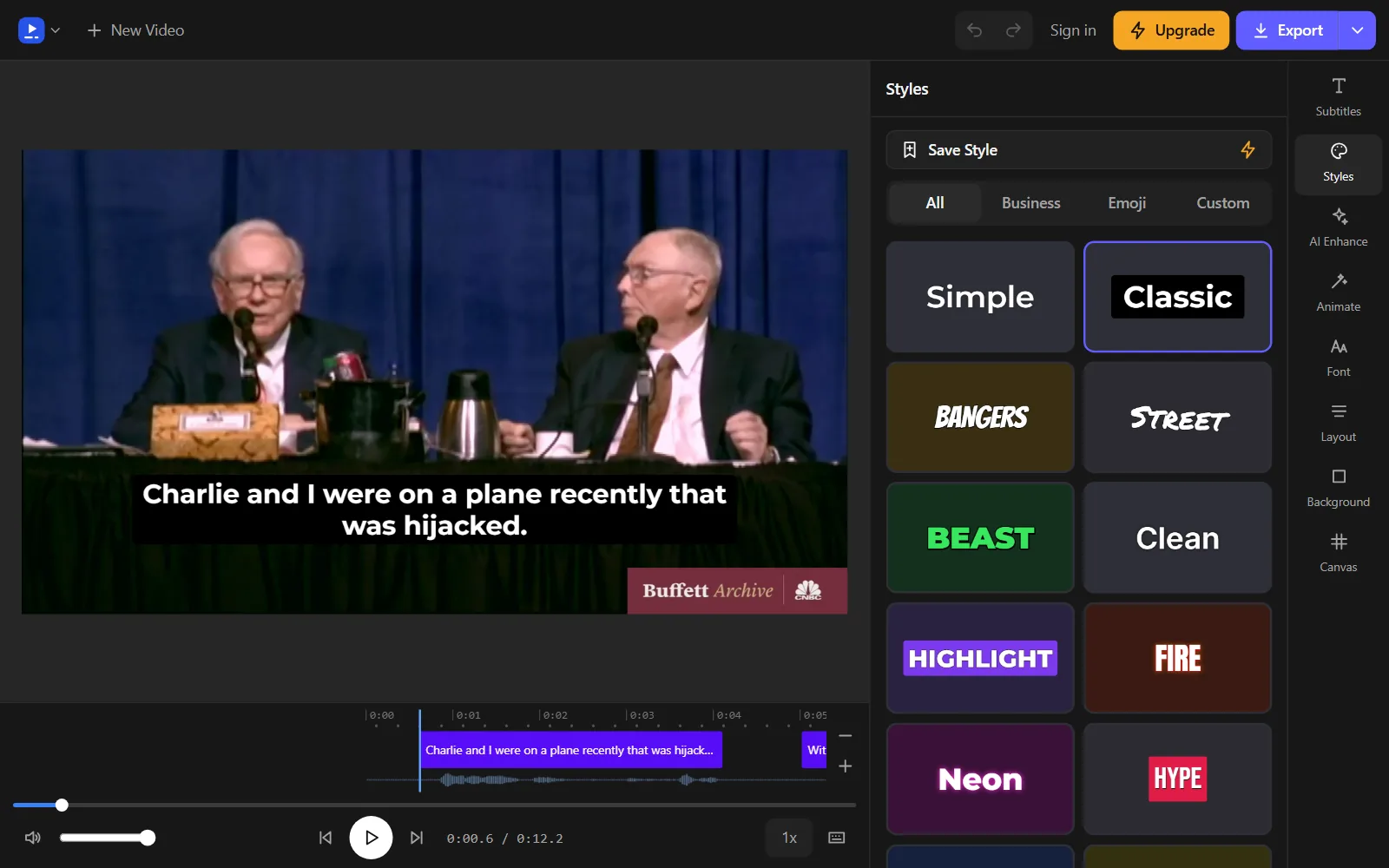
The Styles panel lists the ready looks next to the video. Trying a few on the same line shows which one stays readable over your footage, and an outline or background box helps over bright shots.
Hebrew and Arabic captions are drawn right to left. In a line that mixes them with English words or numbers, each part keeps its own reading order, and Arabic letters are drawn joined. Every one of the 28 styles draws Hebrew and Arabic letters in a font made for those scripts.
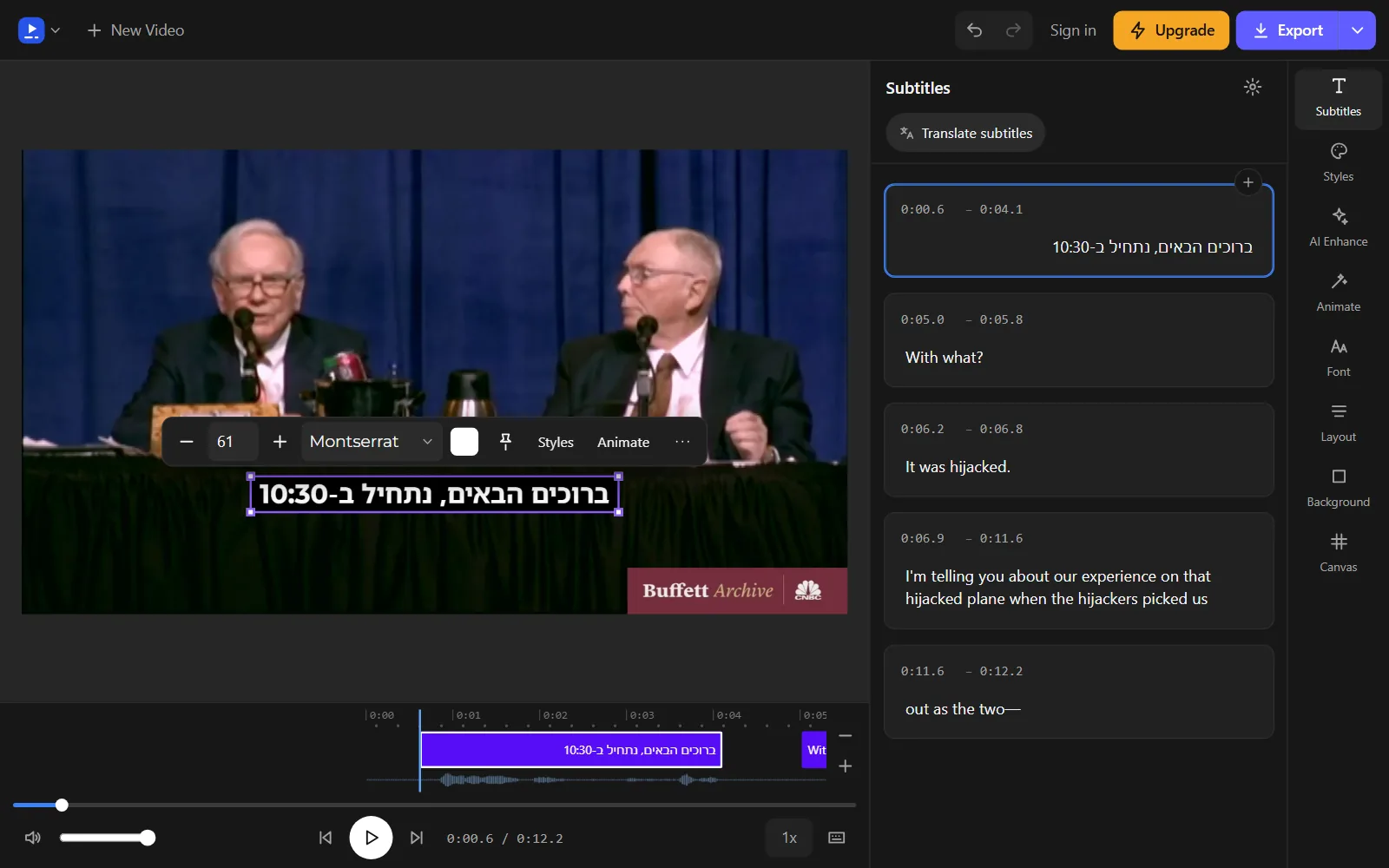
If you already have an Arabic or Hebrew .srt where full stops, numbers or English words show at the wrong end, the free RTL subtitle fixer fixes the file in your browser. You can then import it into CapCut Online or CapCut Desktop.
Common problems
- No captions appear. CapCut's help points to missing or muted audio, the wrong language setting, a weak connection or an old app version. Check each one, update the app from the App Store or Google Play, and generate again.
- The web editor stops partway. Refresh the page and try again, in Chrome or Edge.
- Nothing happens on desktop after you click Generate. Check the internet connection, then restart CapCut.
- Caption Export fails. Make sure the captions came from Auto Captions, save to a path with plain English letters and no symbols, and update CapCut.
- An exported SRT shows broken letters in another program. Save it again as UTF-8 without a BOM, as CapCut's help advises.
- A batch edit replaced lines that should differ. Edit writes one text into every selected line, so select only lines that should read the same.
Frequently asked questions
Which languages can CapCut auto captions recognize?
You pick the spoken language from the list in the app before you generate. If yours is not offered, you can bring in a subtitle file made elsewhere. CapCut's import guide asks for UTF-8 text and names Chinese, Arabic and Cyrillic as examples.
Can CapCut translate auto captions?
CapCut's feature pages say generated captions can be translated into a target language. Its batch editing page also lists translating among the edits you can make to selected lines on a phone. Check names and technical terms after any translation.
Does CapCut accept a caption file I already have?
Yes, on CapCut Online and CapCut Desktop. The web editor accepts SRT only, uploaded from the captions tab, and desktop accepts SRT or TXT with timecodes from Captions > Add Captions. The mobile app cannot start an import, so CapCut suggests importing on a computer and opening the project on the phone through CapCut Cloud Sync.
Can CapCut caption a voiceover?
On desktop, yes: CapCut's help says to select the audio source before you generate, so you can point Auto Captions at a voiceover track. Its pages describe that choice for desktop only.
Does CapCut tell speakers apart in auto captions?
CapCut's help says speaker detection is available on desktop in some regions. It adds that speaker differentiation, punctuation refinement and batch SRT export may be limited to desktop or web, depending on region and app version.
Can my team review CapCut captions?
CapCut's caption feature pages say you can invite teammates through shared project access and permissions to review subtitles. Confirm the final text yourself after their feedback.
How do I record audio that captions well in CapCut?
CapCut's help suggests a good microphone, a quiet room, clear and steady speech, and one voice at a time. For the web editor it recommends clear mono audio.
Try it on your own video
Open the editor, add your video, and get captions you can edit, style and export.
Upload your videoNo account needed to start.


Sources
We read each page below on the date shown. Rules, prices and plans change, so check the page itself before you rely on it. A source we cite does not endorse Vid Hub.
- CapCut: How do I recognise subtitles?Read 2026-11-07.
- CapCut: Why aren't auto captions working in CapCut?Read 2026-11-07.
- CapCut: How do I fix inaccurate auto-captions in CapCut?Read 2026-11-07.
- CapCut: How should I batch edit to recognize subtitle/lyrics text in CapCut?Read 2026-11-07.
- CapCut: How to import subtitles into CapCutRead 2026-11-07.
- CapCut: Why do the captions fail to export?Read 2026-11-07.
- CapCut: Is it possible to export videos from CapCut without a watermark?Read 2026-11-07.
- CapCut: Can I access diamond-icon items with the Standard plan?Read 2026-11-07.
- CapCut: Auto caption generatorRead 2026-11-07.
- CapCut: Add subtitles to videoRead 2026-11-07.