
How-to
How to add English subtitles to a video in another language
Upload the video to Vid Hub and choose English. You do not need to say which language is spoken, because the speech is detected. Watch a preview of up to 20 seconds with English subtitles, then buy the video or choose a plan; the original audio stays, so viewers still hear the speaker.
Maybe you have a clip you cannot understand, or an audience that cannot understand you. Either way, the job is the same: English subtitles in the picture, the speaker's voice kept.
On this page
This is one of the most common translation jobs. VEED writes on its blog that “Japanese to English is the most-searched language pair for video translation.” The steps below work the same way for any of the languages Vid Hub can transcribe.
Before you start: have the video file
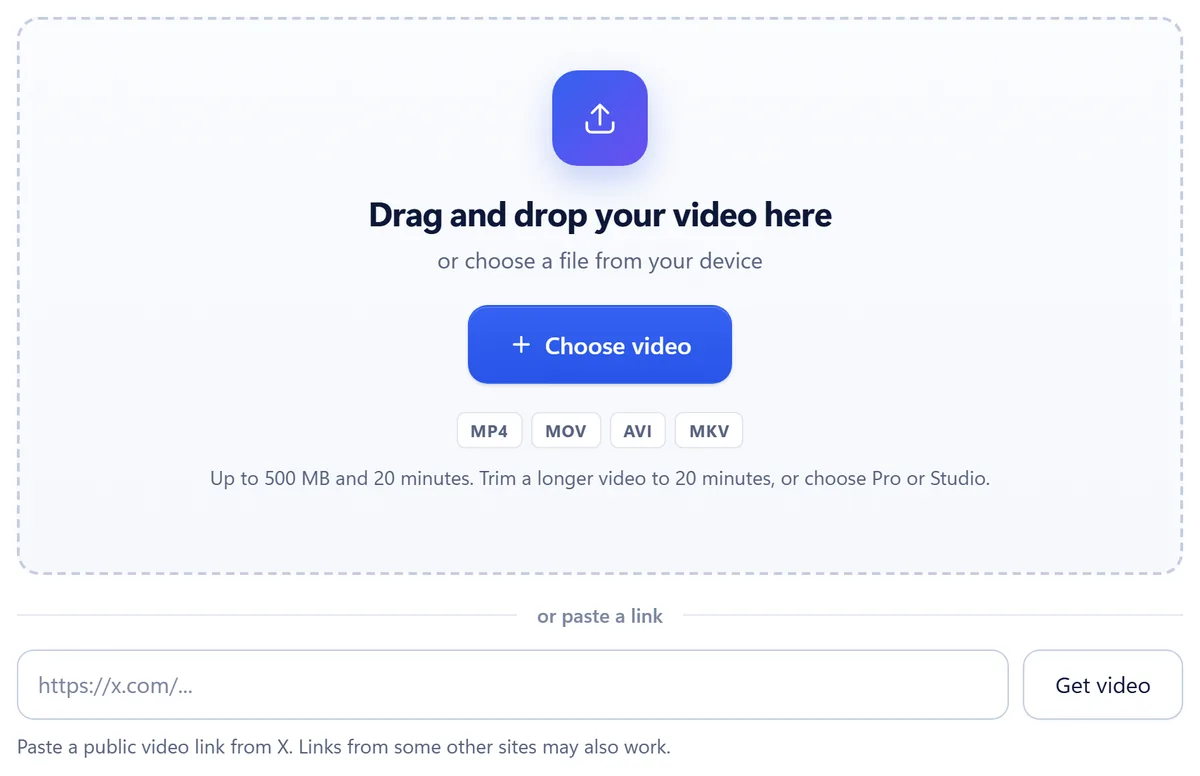
Vid Hub takes a video you upload, as MP4, MOV, AVI or MKV up to 500 MB and 20 minutes, or a public link from X. Links from some other sites may also work. If a link does not work, upload the file instead. Use a video you made or have permission to use.
Step by step: foreign-language video to English subtitles
Upload the video
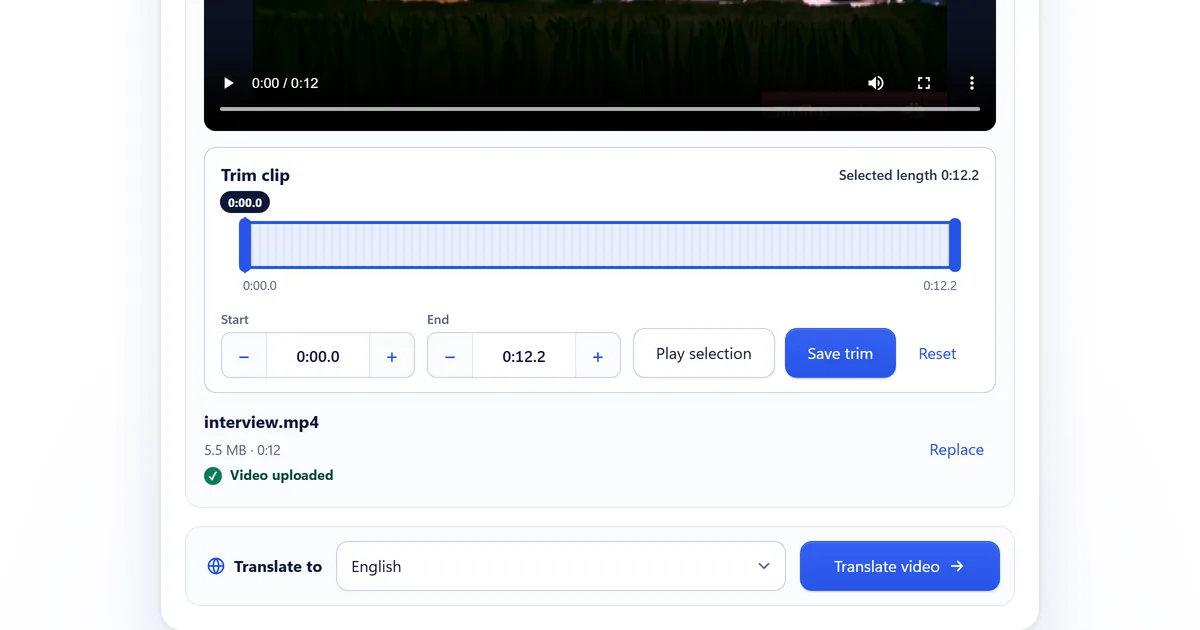
On the Vid Hub homepage, drop the file or paste a public link from X. You do not need an account to upload. Trim a longer video to 20 minutes, or choose Pro or Studio.
Choose English
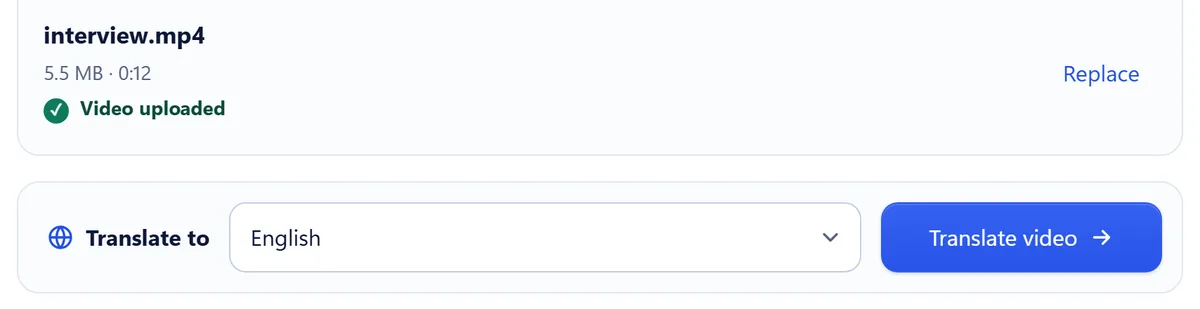
Under Translate to, pick English and press Translate video. You do not pick the source language: the speech is detected and transcribed in the language it was spoken, then translated into English. You sign in at this point.
Wait while it translates
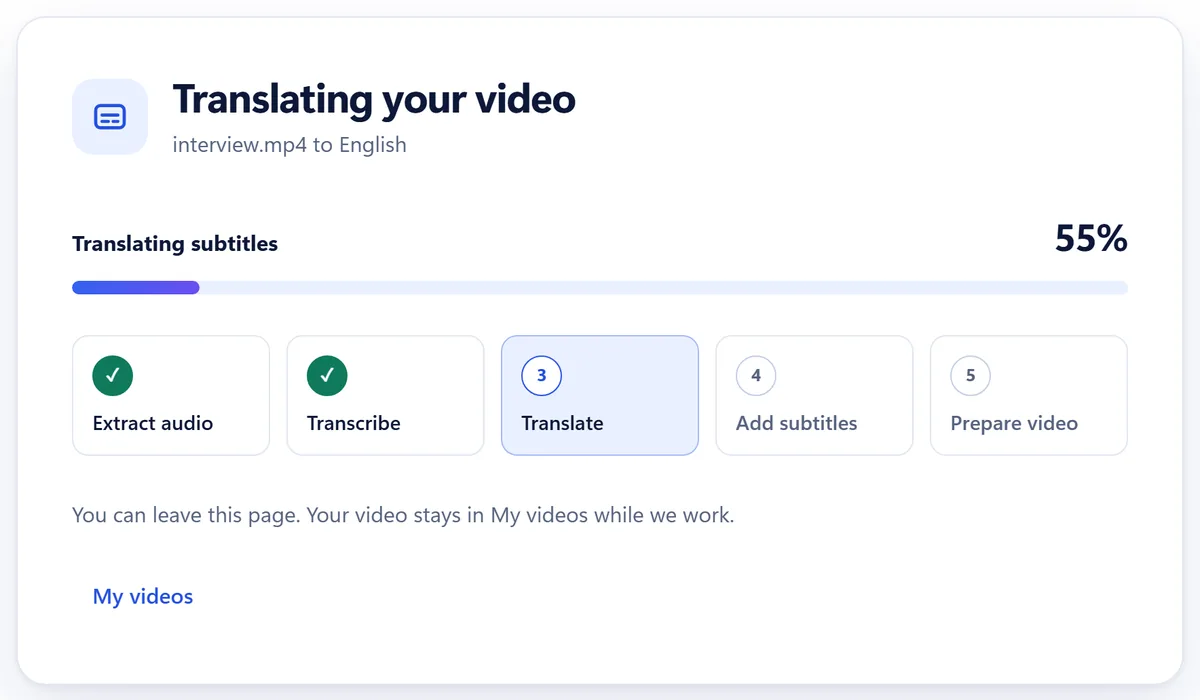
Vid Hub extracts the audio, transcribes it, translates it into English, adds the subtitles and prepares the video. You can leave the page: the video stays in My videos while it works.
Watch the preview
The preview starts just before the first subtitle and lasts up to 20 seconds. Read it with the sound on: names and numbers are the first things to check.
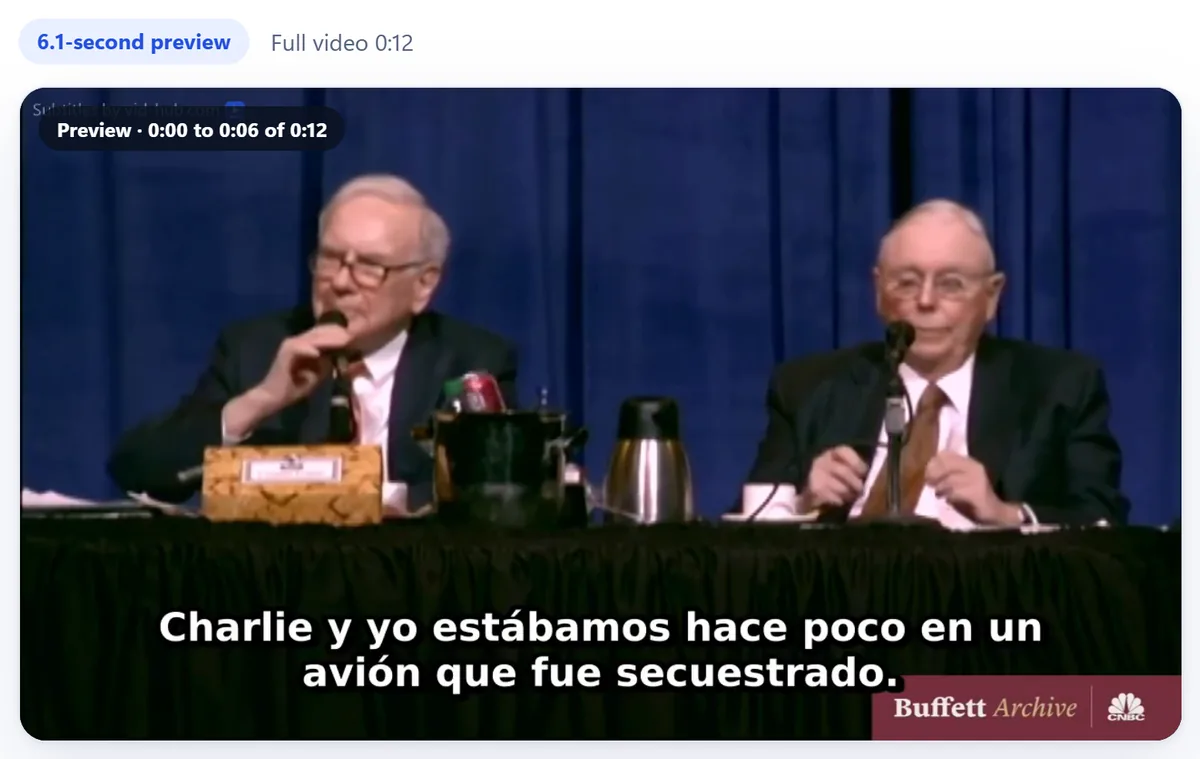
Shown with our published English-to-Spanish sample, a 12-second excerpt from the CNBC Warren Buffett Archive; no endorsement is implied. A video of 20 seconds or less gets a preview of half its length; a longer one gets 20 seconds. Buy the video and download
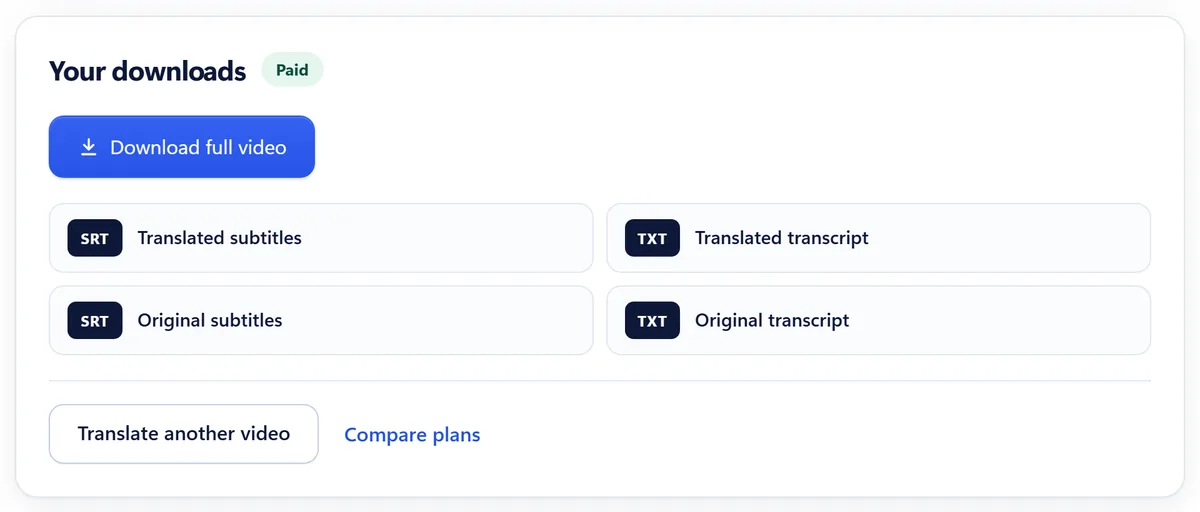
Buy that video for $3 or choose a monthly plan. You download the MP4 with English subtitles burned in, the English SRT and TXT, and the SRT and TXT in the original language. A single purchase and Creator keep a small Vid Hub watermark; Pro and Studio can remove it.
Check the English before you share it
- Names and terms. Speech recognition can hear a name it does not know as an ordinary word. Check people, places and product names first.
- Numbers. Dates, prices and figures should match what is said.
- Language switches. If the speaker changes language in the middle, check those parts most closely.
- Sound quality. Music, crosstalk and distance from the microphone make speech harder to transcribe, and a clear recording gives a better result.
- Corrections. Pro and Studio can edit the wording and timing of any line and burn the subtitles in again before you download.
What you can do with each file
- The MP4 has the English subtitles in the picture, so it plays the same in every app and survives reposting.
- The English SRT goes next to your original video on a platform that accepts subtitle files, so viewers can switch it off.
- The TXT files are plain transcripts, in English and in the original language, to read, search or quote.
Guides for common source languages
Each page covers what the speech recognition has to deal with in that language and what to check in the English result.
- Spanish video to English
- Japanese video to English
- Hindi video to English
- Arabic video to English
- Chinese video to English
- Korean video to English
- Russian video to English
- Any other language to English
Who should pick what
- Use Vid Hub to understand or share a foreign-language clip with English subtitles and the original voice.
- Use a human translator when the video is evidence, a contract or anything where each word matters.
- Use a dubbing tool when viewers should hear English. See Subtitles or dubbing.
- If you only need the words in the language spoken, see Transcribe a video to text.
For the general walkthrough, see How to add subtitles to a video. Prices are on Pricing.
Frequently asked questions
Do I need to know which language the video is in?
No. The spoken language is detected, transcribed as spoken, and then translated into English.
Can I add English subtitles to a video from a link?
Yes, from a public link from X. Links from some other sites may also work. Otherwise, upload the video file.
Will the original audio stay?
Yes. Vid Hub adds English subtitles to the picture. It does not dub or change the audio.
What files do I get?
With a purchase or a plan: the MP4 with English subtitles burned in, the English SRT and TXT files, and the SRT and TXT files in the original language.
How much does it cost?
Uploading and the preview of up to 20 seconds are free. The full video is $3 for one video up to 20 minutes, or you can choose a monthly plan on Pricing.
Add English subtitles to your video
Upload it, choose English, and watch a preview of up to 20 seconds with English subtitles before you pay.
Upload your videoSources
We read each page below on the date shown. Prices and plans change, so check the vendor's page before you buy. A source we quote does not endorse Vid Hub.