
How-to
How to translate a TikTok or Instagram Reel without dubbing
Save the finished video from your phone or editor, upload the file to Vid Hub, and choose the language. You watch a preview with the translated subtitles burned in, then download an MP4 you can post on TikTok, Instagram or anywhere else. Your own voice stays, and nothing is dubbed.
Burned-in subtitles are part of the picture, so they stay through every re-upload, repost and download, on any app.
On this page
Why burned-in subtitles for short videos
A short video often starts playing in the feed without sound, so a translated line in the picture is what a scrolling viewer reads first. Viewers who turn the sound on still hear you, in your own voice.
Burned-in subtitles are pixels in the video, not a caption track. They show on TikTok, Instagram, WhatsApp, X and anywhere else the MP4 plays, and they stay when someone saves and reposts the video. The trade-off is that nobody can turn them off or switch the language. For a second language, translate the video again and post it as its own video.
Get the file first
Vid Hub works from the video file. Save or export your finished video from your editor or your phone's gallery, then upload that file. Vid Hub supports uploaded files and public links from X, and links from some other sites may also work. This guide does not count on a TikTok or Instagram link: upload the file.
If you have a version without your own on-screen captions, upload that one. Otherwise the translated subtitles sit near the captions you already burned in, and the picture gets crowded.
Step by step on your phone
Upload the video
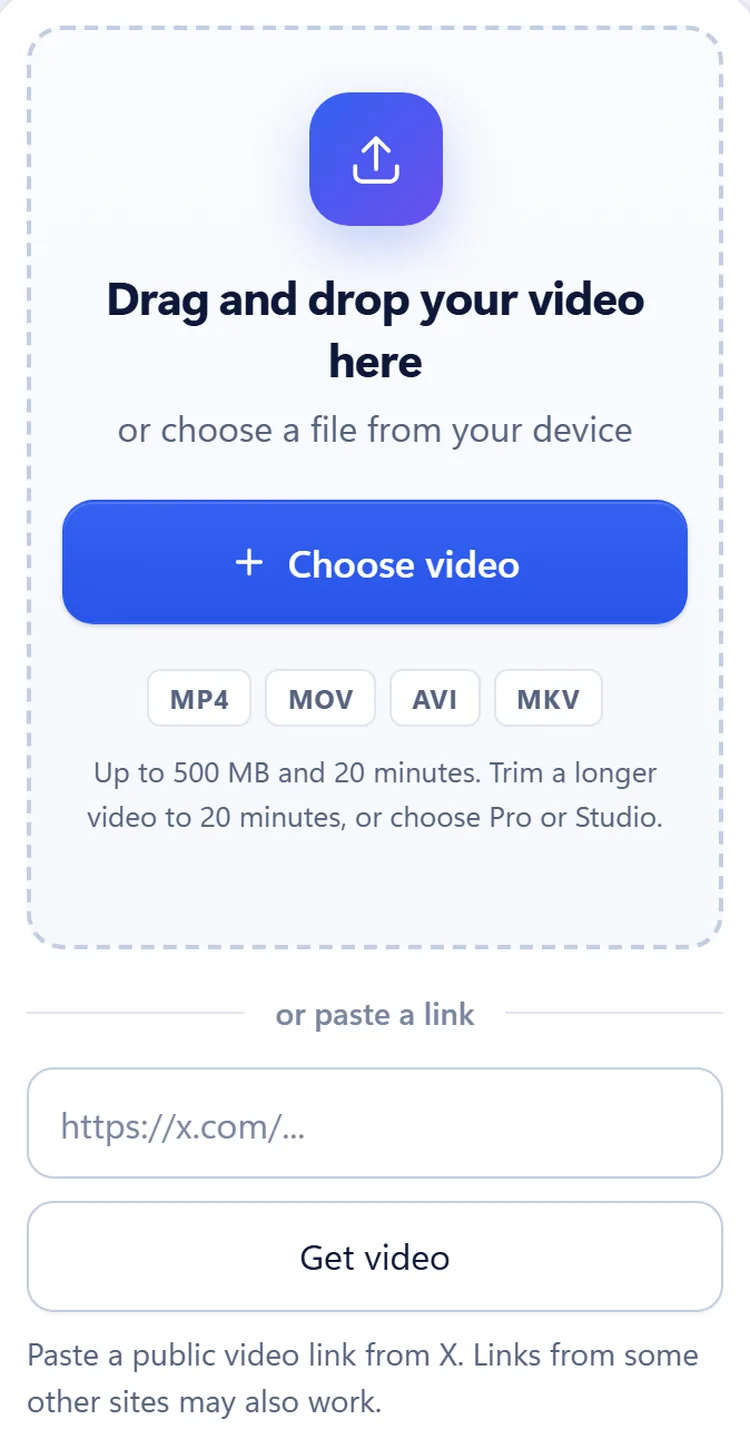
Open the Vid Hub homepage on your phone, tap Choose video and pick the file. MP4, MOV, AVI and MKV up to 500 MB and 20 minutes are accepted, so a phone recording or an exported short works.
Choose the language
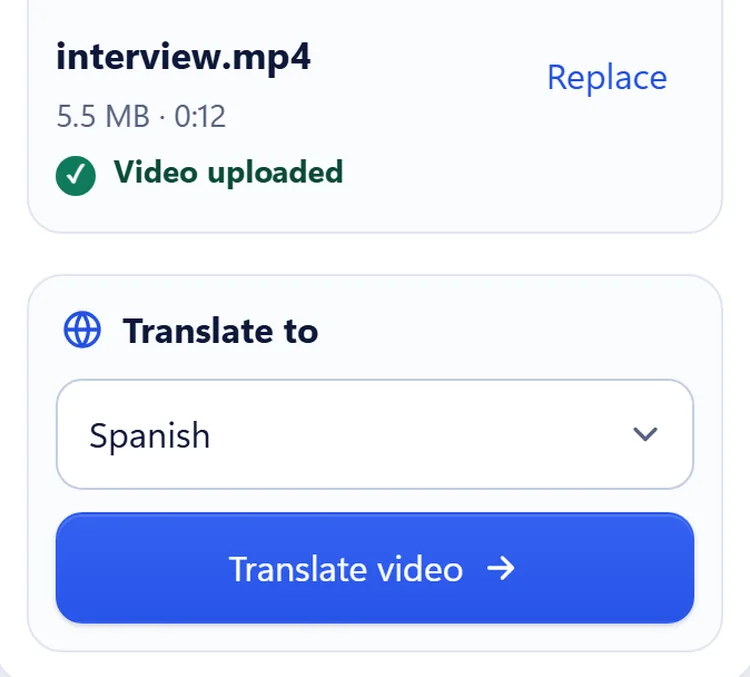
Under Translate to, pick the language of the audience you want to reach and tap Translate video. You do not pick the language you speak: it is detected. You sign in at this point.
Wait while it translates
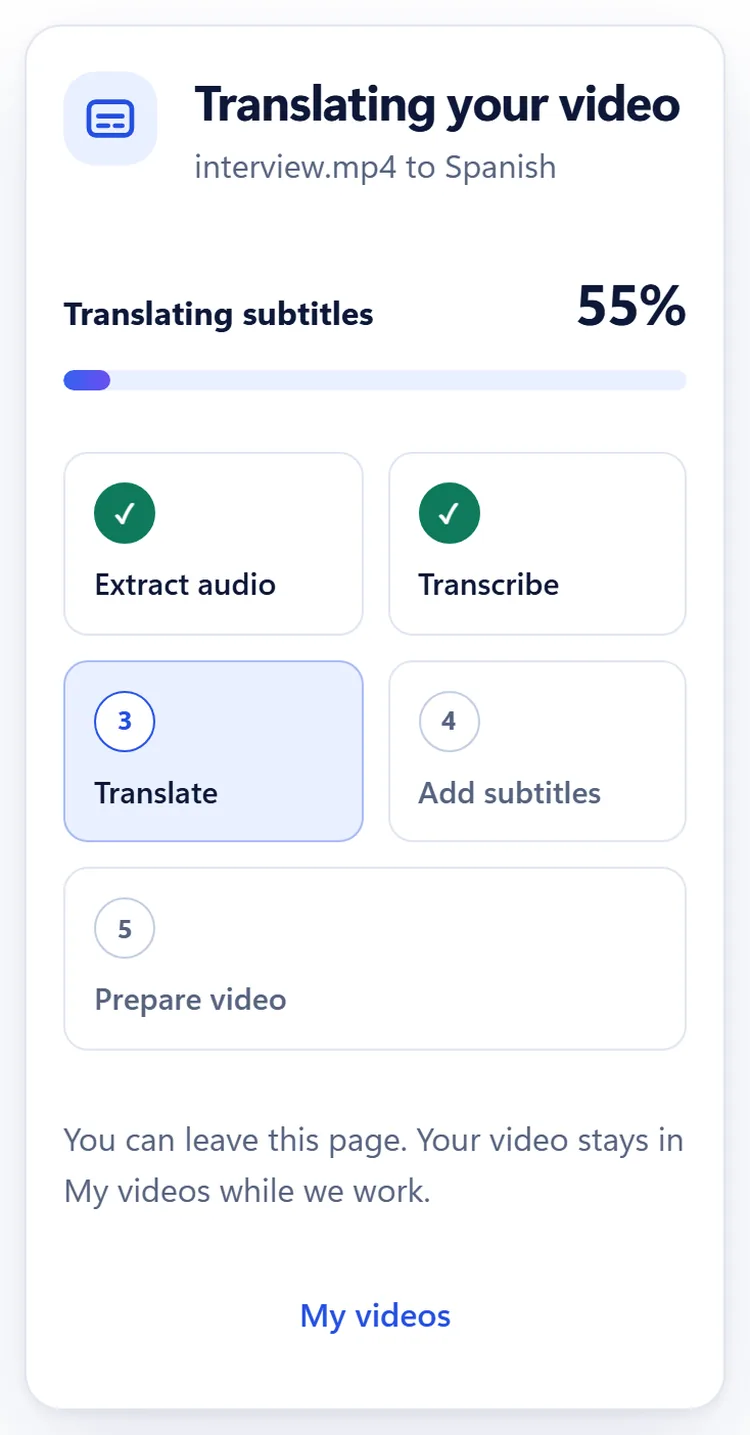
You can leave the page or lock the phone. The video stays in My videos while it works.
Watch the preview on the phone
Watch the preview the way your viewers will: on a phone, in portrait. Check that each line is short enough to read, and look at where the subtitles sit compared with the app's own text and buttons.
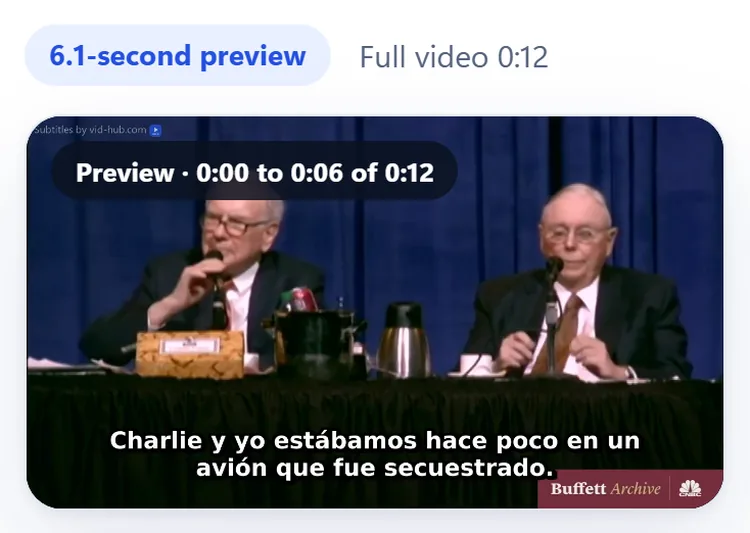
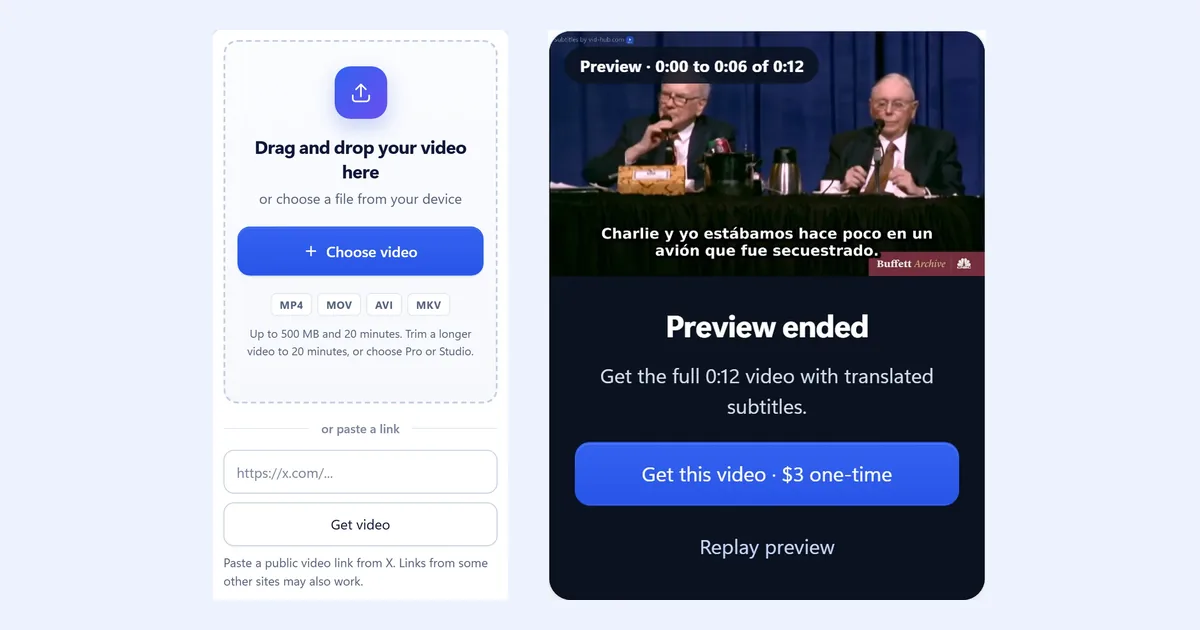
Shown with our published English-to-Spanish sample, a 12-second excerpt from the CNBC Warren Buffett Archive, so its preview is 6.1 seconds long. No endorsement is implied. Buy and download
Buy that video for $3 or choose a monthly plan, then download the MP4 and post it. The SRT and TXT files come with it. A single purchase and Creator keep a small Vid Hub watermark; Pro and Studio can remove it.
Line length and placement on a vertical video
A vertical video is narrow, so each subtitle line takes up more of the picture's width. Vid Hub splits a long subtitle across lines, but fast speech still makes long subtitles. If a line is hard to read on the phone, Pro and Studio can shorten the wording or change the timing and burn the subtitles in again.
Vid Hub burns the subtitles in at the bottom center of the picture, a short distance above the bottom edge. It does not move them away from the area where TikTok and Instagram show your caption, your username and their buttons. Watch the preview on your phone. If the lines would sit under the app's text, leave more space at the bottom of the frame when you film or edit, then translate that version.
What to post where
- TikTok and Instagram Reels: post the MP4 with the subtitles burned in, and write the post text in your viewers' language too.
- Two audiences: post one video per language rather than two subtitle languages in one picture.
- Platforms that accept subtitle files: upload your original video with the translated SRT file instead, so viewers can switch the subtitles on and off.
- WhatsApp and other messaging apps: send the MP4, and the subtitles show in every player.
Who should pick what
- Use Vid Hub for translated subtitles over your own voice, with plain white lines and a dark outline.
- Use Submagic or CapCut if you want animated captions styled by hand on every clip.
- Use a dubbing tool such as HeyGen or Captions if your viewers should hear the new language. See Subtitles or dubbing.
More for short videos: Add subtitles to a TikTok video, Add subtitles to an Instagram video and Subtitle a video for social media. Popular languages for short videos include Spanish, Portuguese and Indonesian. Prices are on Pricing.
Frequently asked questions
Can I translate a TikTok without dubbing?
Yes. Upload the video file and choose the language. Vid Hub burns translated subtitles into the picture and keeps your own voice.
Can I paste a TikTok or Instagram link?
Vid Hub supports uploaded files and public links from X. Links from some other sites may also work. For a TikTok or a Reel, save the video file and upload it.
Will the subtitles cover TikTok's caption or buttons?
They can. The subtitles sit at the bottom center of the picture, where TikTok and Instagram also show text and buttons. Watch the preview on your phone before you post.
Can I change the subtitle style?
No. Vid Hub burns white subtitles with a dark outline. Pro and Studio can edit the wording and timing, but not the font or the position.
Do the subtitles stay if someone reposts my video?
Yes. They are part of the picture, so they stay in every copy of the MP4.
Translate your short video
Upload the file from your phone, choose the language, and watch a preview with the translated subtitles before you pay.
Upload from your phoneSources
We read each page below on the date shown. Prices and plans change, so check the vendor's page before you buy. A source we quote does not endorse Vid Hub.
- Submagic pricingRead 2026-10-19.
- CapCut help: How to recognize bilingual subtitlesPage updated 2026-01-30. Read 2026-10-18.